The design looked fine on screen. Then the machine started running and something was off: the head crawling through a curve it should have swept through, a faint judder in the motion, a job estimate that climbed past anything reasonable for a design this size. Or the piece came off the bed and the curve that should have been smooth has visible flat spots in it, like a circle drawn by someone in a hurry.
One possible cause is more or noisier geometry than the artwork needs. Also check the software’s curve conversion and the machine’s motion settings. This is one of the few problems where we can speak from the inside, because building cut files is the actual job here. Node counts and path structure are what we work in every day, and node bloat is the single most common thing wrong with a file that came from somewhere else.
Tip
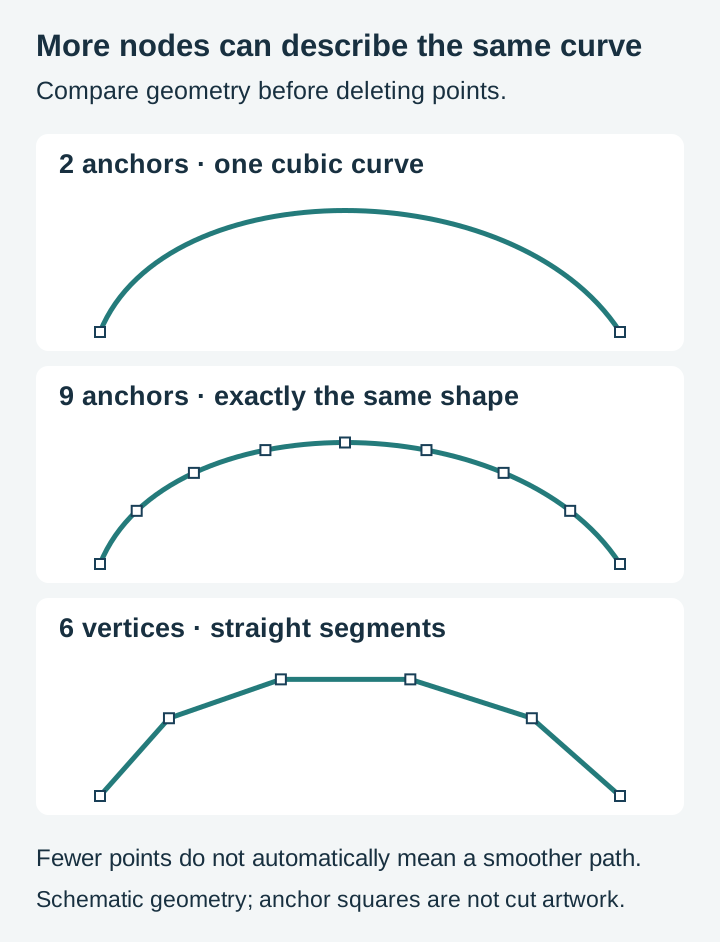
Check the geometry, not just the count. Redundant nodes can make editing cumbersome, and noisy short segments can affect cutting. A smooth curve with extra nodes is not automatically jagged. Compare the actual outline before and after cleanup, then inspect the cutting software’s preview.
What a node actually is
Open any SVG and underneath the picture is a list of points. Each point, called a node or an anchor, has coordinates and usually a pair of control handles that describe how the line curves on its way in and on its way out. Between two nodes sits a Bezier curve, which is a piece of math that can bend into almost any shape you want using nothing but those two endpoints and their handles.
That last part is what makes vectors so efficient. A common cubic-Bezier approximation of a circle uses four nodes; SVG also has native circle and arc representations. A well drawn leaf needs maybe eight. A running wolf silhouette with fur detail along the back might need two or three hundred, and it will look identical whether you cut it at two inches or two feet.
Now picture the same wolf traced automatically from a photograph. A tracer fits paths to pixel boundaries, and many tracers produce Bezier curves. Its smoothing and detail settings determine how much image noise becomes path geometry. The result is a shape that looks roughly right and is described by forty thousand points instead of three hundred. Same picture, wildly different file.
The symptoms, and what each one is telling you
Node bloat shows up in four ways, and they are distinct enough that the symptom usually tells you where the problem lives.
| What you see | What is happening |
|---|---|
| Job runs far longer than the design's size suggests | Very short or irregular machine moves can limit speed; check how the software converts the paths and how the controller plans motion |
| Visible stutter or judder along curves | On machines that stream commands over a serial link, the controller can empty its buffer faster than the sender refills it. A dense stream of tiny moves is one possible cause, alongside communication and motion settings |
| Curves come out faceted instead of smooth | The path is probably built from straight segments rather than true curves. More on this below, because it is a genuinely different bug |
| Design software lags, drags, or crashes on import | Every node is an object the editor has to draw, hit test, and hold in memory. Lighter weight design apps tend to feel this first |
These symptoms can occur across brands, but their causes depend on the editor, toolpath conversion and controller. Compare the preview and job settings before blaming node count alone.
Checking your node count in about thirty seconds
You cannot fix what you have not measured, and measuring is easy.
In Inkscape. Open the file, press N for the node tool, click the path, then press Ctrl+Alt+A to select every node in it, including any subpaths. The status bar at the bottom tells you how many are selected. Do this before anything else; the number usually settles the question immediately.
By file size. This is a rough proxy but a fast one. Our single design SVGs generally sit somewhere between about 15KB and 100KB depending on how intricate the artwork is. A 3 MB single-design file deserves inspection, but size alone does not diagnose node bloat. Embedded bitmaps, metadata, coordinate precision and legitimate detail can also make it large.
In a text editor. An SVG is text. Open it and look at the d attribute inside a <path> element. A clean path is a readable string of a few dozen commands. A bloated one is a wall of numbers that scrolls for pages. You do not need to understand the syntax to tell the difference.
One thing worth separating out while you are in there: coordinate precision. Some exporters write numbers to eight decimal places, which inflates file size without adding a single node. Inkscape's Save As Optimized SVG has a coordinate precision setting that trims this. It shrinks the file without removing a node, though trimming precision too far can shift geometry slightly, so zoom in on a curve afterwards and check. It will not fix a genuine node problem either way.
Where the bloat comes from
Auto traced bitmaps, by a wide margin. Every tracer converts pixel boundaries into paths, and pixel boundaries are noisy. JPEG compression artifacts, sensor grain, and the soft anti aliased halo around every edge all become real geometry. Our photo to SVG guide goes deep on picking a source image a tracer can actually succeed on, which matters more than any cleanup you do afterwards.
Format round trips. Depending on the DXF version and the exporter, a curve making the trip through DXF and back can land as a polyline: hundreds of tiny straight segments impersonating a curve. PDF exports from some illustration software do the same to certain effects.
Boolean operations stacked up. Union, difference, and intersection each leave nodes at every point where the original shapes crossed. Do that a dozen times while building a design and you accumulate redundant points that contribute nothing to the visible outline.
Stroke to path conversions. Outlining a stroke turns one line into a closed shape with points down both sides. Do it to a hand drawn sketch with a textured brush and the count multiplies fast.
Invisible leftovers. Duplicate shapes stacked exactly on top of each other, paths hidden entirely beneath a filled area, fragments parked off canvas. They cost nodes, they can cost cutting time if the machine processes them, and they are invisible until you go looking.
 Animals In Shades Design Pack78 designs, commercial license included$3.99
Reducing the count without wrecking the shape
Work in this order. The early steps cost you nothing in fidelity, and by the time you reach the last one there is often nothing left to do.
-
Delete what should not be there. Select all and check the bounding box for stray objects far outside the artwork. Look for duplicates by moving the top shape aside and seeing whether an identical one sits underneath. This step is pure profit: fewer nodes, zero change to the design.
-
Simplify one path at a time, not the whole document. In Inkscape, Path then Simplify (Ctrl+L) refits a path with fewer nodes. The important detail is that the simplification threshold scales with the size of what you have selected, so a select all simplify hits your small details hardest while barely touching the large shapes. Select individual paths and the results are far more predictable.
-
Press once, look, then decide. Even a single pass can change the outline. Repeated presses in quick succession get progressively more aggressive in Inkscape, which is handy when you mean it and destructive when you do not. Zoom in on the sharpest corner in the design before you start and keep your eye on it, because corners round off before anything else does.
-
Edit by hand where it counts. Sometimes the trouble is twenty junk nodes in one small area rather than a whole path being heavy. Deleting them individually with the node tool keeps everything else untouched. Our Inkscape editing walkthrough covers the node tool properly if you have never used it.
-
Retrace instead of repairing. If the file came from a tracer and it is fighting you at every step, throw it away and trace again from a better prepared source. Twenty minutes of cleanup on hopeless geometry loses to two minutes of tracing done right.
If you do not want to install anything for step four, Craftgineer's NodeCraft is a browser based vector editor with real node and path editing. It is free to use and free to export from, and it does need a free account, so sign in first. Keeping a saved project in it is the part reserved for a paid plan, which starts at $4.99 a month. For the usual job here that never comes up: open a file, fix a path, export it, done.
Faceted curves are a different problem
This is the one that catches people, because the instinct when a curve looks chunky is to assume there is not enough detail. Usually the opposite is true.
A cubic Bezier segment stores endpoints and control points. It can describe a smooth curve, although adjoining segments still need appropriate joins. A polyline stores a long chain of straight segments approximating the same shape. On screen at normal zoom, the two are indistinguishable. Scale up, or cut at size, and the polyline shows its flat spots, because they were always there.
You can tell them apart in about five seconds. Grab the node tool and click a node on the curve. Bezier segments have curve controls, although an editor may hide handles until the relevant nodes are selected. Straight segments have no curvature between endpoints; their vertices need not be evenly spaced. Inspect the segment type as well as the handle display.
The fix is not deleting nodes, it is refitting the curve. Inkscape's Simplify does exactly that: it replaces the chain of straight segments with proper Beziers, which usually cuts the node count dramatically and makes the shape smoother at the same time. Refitting can produce a smoother approximation, but compare it with the intended shape; smoothness alone does not establish fidelity.
Two other causes worth ruling out first. Your editor's display quality setting can render curves coarsely to stay responsive, so zoom in properly before you diagnose anything. And some cutting programs have their own curve resolution or arc fitting setting that governs how they convert curves into machine moves. Check your program's documentation for what it calls that and what its default is, because a faceted result can be introduced downstream of a perfectly good file.
When a high node count is fine
Here is the honest counterweight, because "fewer nodes is better" is a rule that goes wrong when applied blindly.
Node count should be considered alongside visible complexity. A simple silhouette may need relatively few points, while a splatter contains many separate irregular droplets, each with its own outline. Removing the ragged edges just to hit a target count would change the artwork.
Compare a cleaned copy against the original at the intended size. Keep the points that preserve useful shape, and remove redundant or unwanted detail only when the result is still what you mean to make.
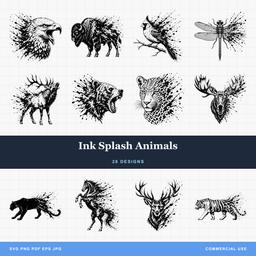 Ink Splash Animals28 designs, commercial license included$3.99
So the question is never "is this number high". It is "is this number explained by the artwork". Three hundred nodes in a plain circle is probably redundant. Two thousand in a splatter is craft. Forty thousand in a traced silhouette is a tracer that mistook photo noise for detail.
The better fix is not creating the problem
Cleanup is a rescue operation. The real answer is a file that never had the problem, and there are two ways to get one.
If you are tracing your own artwork, the trace itself decides your node count before you touch anything. Feed a tracer a high contrast source that is genuinely black and white and it produces lean paths. Feed it a soft photograph and no amount of afterwards fixes it. Craftgineer's MonoTrace is the browser vectorizer we point people at for this, and it is free with a free account. It is not magic, and it will not rescue a bad source image any more than a desktop tracer would. What it does is produce a sensible path set from a good one, which is the half of the problem you can actually control.
The other option is to start from artwork that already has suitable vector paths. Both careful tracing and direct vector drawing can produce clean paths. Either approach still needs suitable stroke widths and gaps at the finished size, which our guide to small detail sizes gets into.
Before you send the next job
Two minutes of checking saves an hour at the machine. Open the file, press N, select all the nodes, and look at the number. Ask whether the artwork explains it. Zoom in on one curve and confirm there are handles on the nodes rather than a string of bare vertices. Move the top shape aside briefly to check nothing is hiding underneath.
If those checks look right, investigate downstream curve conversion, operation settings and machine motion. The checks narrow the problem; they do not prove every aspect of the file is correct.
Every pack in our catalog includes SVG artwork for $3.99, with a commercial license included and files delivered as SVG, PNG, JPG, PDF, and EPS. The wildlife collection offers a range of animal artwork. Inspect the selected file at your intended size and preview its paths for the process you plan to use.
Designs for this project
Frequently Asked Questions
How many nodes should an SVG have?
There is no universal number, because it depends on what the shape is. A clean animal silhouette usually lands in the low hundreds. An organic splatter or texture design legitimately runs into the thousands. What matters is whether the count is proportional to the complexity you can actually see.
Why does my file cut slowly even though the design is small?
Very short or irregular motion segments can limit speed or strain a controller’s command stream. The effect depends on how the cutting software converts curves and how the controller plans motion. Node count alone does not predict job time.
Why are my curves faceted instead of smooth?
The curve is probably not a curve. Polylines made of short straight segments look smooth on screen and reveal their flat spots when you scale up or cut. This usually comes from a DXF round trip, a CAD export, or a tracer set to output straight lines.
Does simplifying a path ruin the design?
Simplification can change the shape even in one pass. Compare with an untouched copy and inspect the intended size as well as a close zoom. Corners soften first, so watch a sharp corner while you work and stop the moment it starts to round off.
Why does an auto traced file have tens of thousands of nodes?
The tracer reproduced everything it saw, including image noise, compression artifacts, and the soft anti aliased pixels at every edge. Each of those wobbles becomes real geometry. A cleaner, higher contrast source image is the fix, not more cleanup afterwards.