The photo is already perfect. Your dog mid head-tilt, a grandparent's portrait, the wedding shot everyone loves. The problem is that your machine cannot use it: a cutting machine wants paths to follow and a photo is just pixels, millions of them, with no lines anywhere.
Converting a photo into an SVG is how you bridge that gap, and it is genuinely worth learning. Pet portraits, memorial pieces, and custom silhouettes are some of the most meaningful projects a machine can make. But the conversion is also where most attempts die, producing either a blob with no face or a noise storm of ten thousand nodes that chokes the software. The difference is almost never the tool. It is knowing what tracing actually does, choosing a photo it can succeed on, and cleaning up what it produces.
We spend our working days turning artwork into clean vector paths, so this guide covers the parts of that craft that transfer to your photo projects: what happens under the hood, which photos trace well, three good tool workflows, and the cleanup pass that separates a usable file from a frustrating one.
Tip
The pipeline that works: pick a high contrast photo, strip the background, convert it to bold black and white line art, vectorize that, then simplify the paths. Every failed photo conversion skipped one of those steps.
What tracing actually does
A photo is a grid of colored pixels. An SVG is a set of mathematical paths. There is no direct translation between them, so tracing software does something more radical than "converting": it makes a decision at every pixel, usually as blunt as "is this darker or lighter than my threshold?", draws a boundary wherever the answer flips, and then fits curves along that boundary.
Two consequences follow, and they explain nearly everything about photo conversion.
First, the trace is a new drawing, not your photo. Soft gradients, fur texture, and gentle shadows cannot survive a yes/no decision, so the output is always a simplified graphic interpretation, closer to a stencil or poster than a photograph. For crafting this is a feature. A bold stylized portrait engraves and cuts far better than a literal photo reproduction ever could.
Second, the tracer is only as good as the boundaries in your photo. Where the subject is clearly darker than the background, the boundary is obvious and the paths come out clean. Where a gray cat sits on a gray sofa, the threshold flips back and forth through the noise and the tracer faithfully draws every flicker. Garbage boundaries in, garbage paths out.
Decide the destination before you trace
Cutting and engraving want different traces, and choosing wrong wastes the whole session.
| Destination | Trace type | Detail tolerance |
|---|---|---|
| Vinyl cutting | Single color silhouette | Low: every shape must be weedable by hand |
| Laser cut through | Single color, connected shapes | Low: islands fall out, thin bridges burn away |
| Laser engraving | Line art or multi level trace | High: the laser marks a surface, so fine lines survive |
| CNC carving | Bold connected shapes | Medium: limited by bit diameter |
For vinyl, aim for the simplest trace you can love: a clean silhouette with a handful of interior details, each one big enough to weed. For engraving you can afford far more, including multi level traces that approximate shading. And note one shortcut before you invest any effort: if your only goal is engraving the photo itself, you may not need an SVG at all. Laser software like LightBurn engraves grayscale photos directly using dithering. Vectorize when something must be cut, scored, or carved along a path, or when you want the stylized line art look on purpose.
 Rainbow Bridge Pet Memorial Designs45 designs, commercial license included$3.99
What makes a photo traceable
This is the highest leverage section of this guide. Ten minutes choosing and preparing the right photo beats an hour fighting settings on the wrong one.
Contrast between subject and background is everything. A dark dog on a light lawn traces almost by itself. A black cat on a dark couch is nearly hopeless without editing. Squint at the photo: if the subject still reads clearly as a shape, it will trace.
Strip the background first. A free background removal tool isolates the subject and eliminates the single biggest source of trace garbage. This one step improves results more than every slider in every tracer combined.
Side lighting beats flat lighting. Light from one side creates the shadow boundaries that define a face or a snout. Flash photos taken straight on flatten everything into one tone and trace into featureless blobs.
Watch the classic troublemakers. Whiskers and flyaway fur are thinner than any trace can hold onto, so expect to lose them or redraw a few by hand. Glasses throw reflections that trace as random white patches. Dark eyes on dark fur merge into one mass; brightening just the eye area in a photo editor before tracing keeps the face alive.
Use the biggest, sharpest original. Crop tight to the subject and start from the highest resolution you have. More pixels give the tracer more boundary to work with, and a sharp edge traces to a smooth curve while a blurry edge traces to wobble.
If a photo fails most of these tests, the honest move is choosing a different photo. The best candidates are usually not your favourite picture of the pet but the clearest one: sharp profile, plain background, good light.
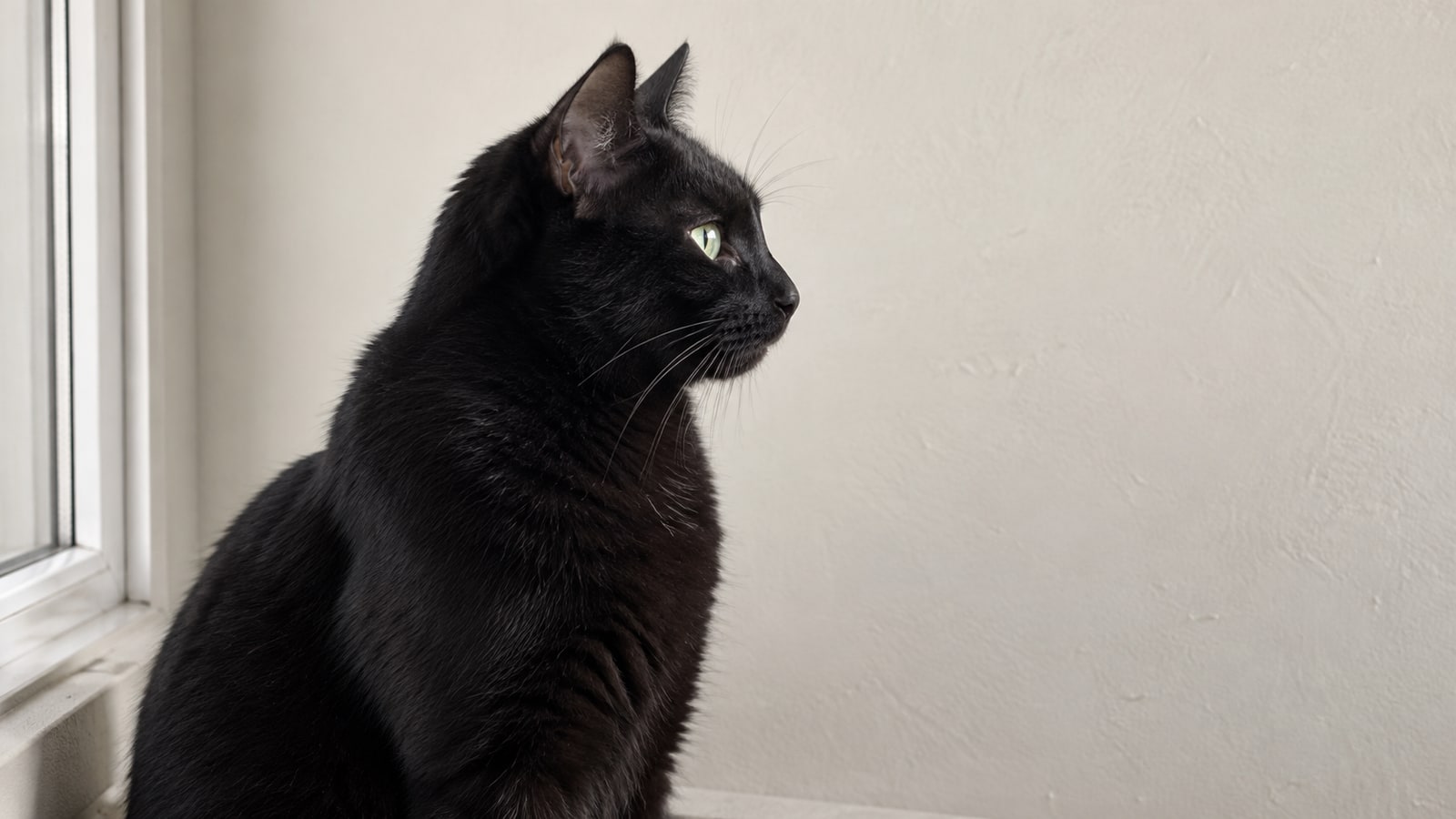
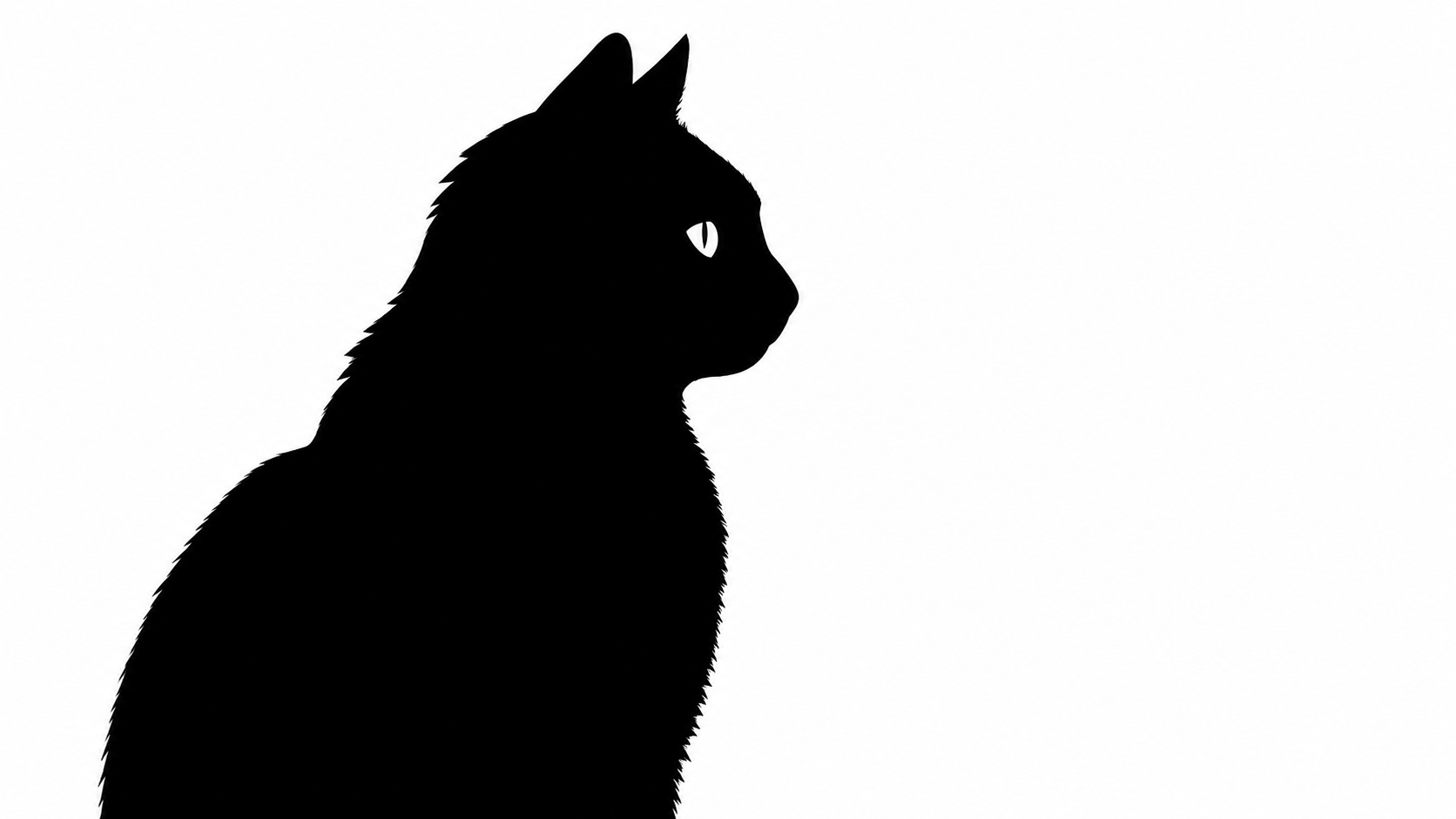
In this worked example, the cat photo above has been interpreted as a black-and-white drawing. The whiskers and fur shading have been dropped while the profile and eye remain. This preparation changes the drawing; it is still a raster image at this stage.
Method 1: Craftgineer Photo Converter
Craftgineer's Photo Converter is the fastest route from photo to craft-ready art. Upload the photo and it uses AI to generate a high contrast line art or engraving style rendering, doing the hard interpretive work (finding the important edges, dropping the noise, keeping the likeness) that threshold tracers cannot.
- Best for: pet portraits, memorial pieces, and custom silhouettes where likeness matters
- Output: clean line art ready for engraving or cutting
- Cost: 1 credit per conversion
The output is still a raster image, so finish the job by vectorizing it with MonoTrace, which is the next method.
Method 2: MonoTrace, the free vectorizer
MonoTrace is Craftgineer's free browser vectorizer, and it is what we reach for to turn clean line art into cutting-ready SVG paths.
- Upload your image (PNG, JPG, or WebP)
- Adjust the threshold until the preview keeps the details you care about and drops the noise
- Raise smoothing until curves look fluid without losing corners
- Download the SVG
MonoTrace shines on high contrast input. Feed it the output of Photo Converter, or any photo you have already pushed to bold black and white, and it produces clean paths with sensible node counts. Feed it an untouched photo and it will struggle exactly like every threshold tracer does, which is not the tool's fault. Preparation first, always.
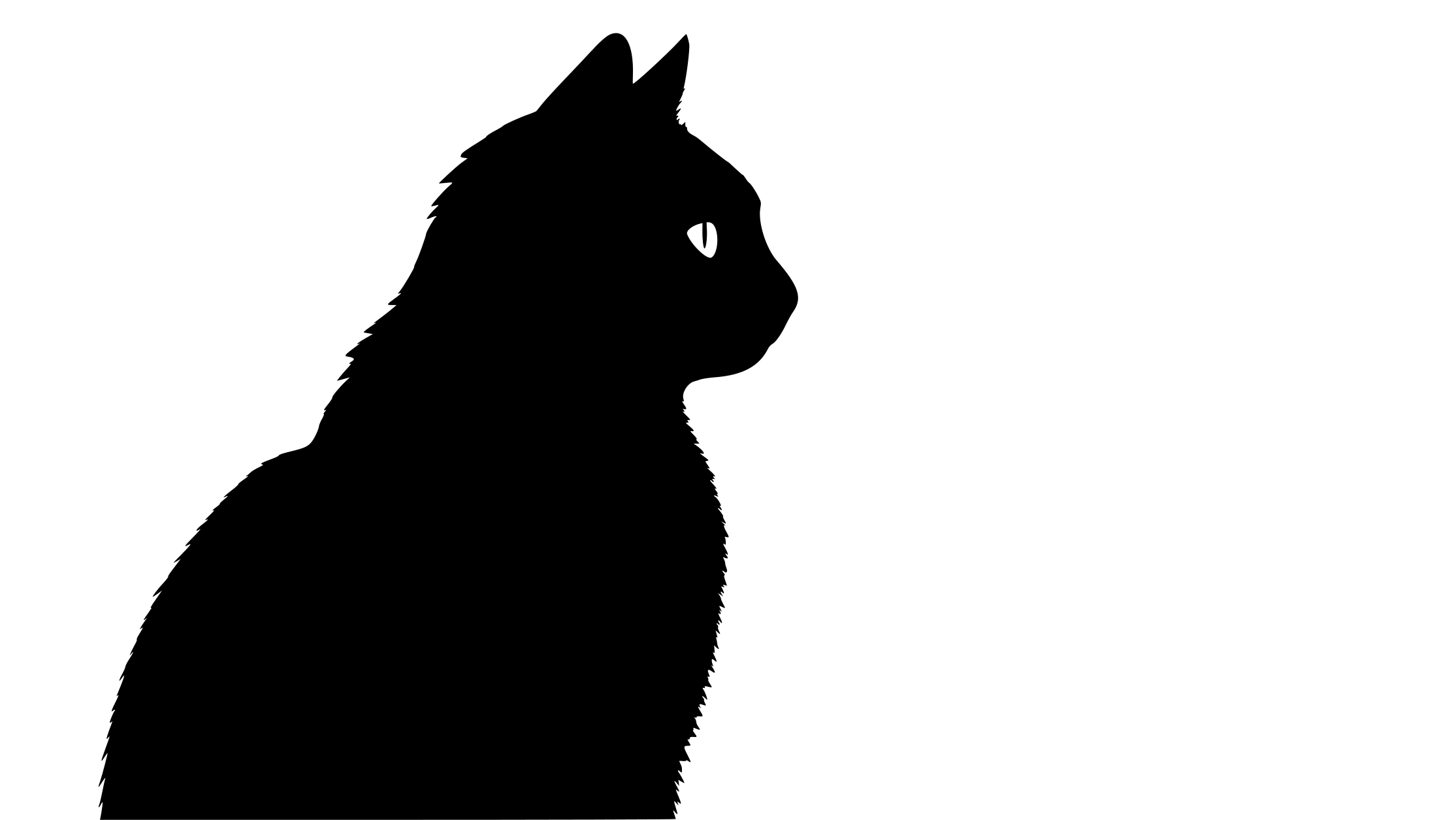
We traced that prepared raster with Potrace to make the path example below. Its appearance is similar, but the boundary is now stored as curves. You can open the actual intermediate SVG and inspect those paths in a vector editor.
Method 3: Inkscape Trace Bitmap
Inkscape gives you the most manual control, free, and it is the right tool when a photo needs fine tuning that automatic converters cannot offer.
- Open the photo: File > Open, or drag it onto the canvas
- Select it, then open Path > Trace Bitmap (Shift+Alt+B)
- Choose a mode, which is the real decision:
- Brightness cutoff makes one black and white shape from a threshold. This is the mode for silhouettes and vinyl-bound designs.
- Edge detection draws outlines where color changes sharply, producing a sketchy line art effect. Striking for engraving, usually too fragmented for cutting.
- Multiple scans, brightness steps runs several thresholds and stacks the results into layered shapes, approximating shading. Three to five steps engraved on light wood reads almost photographic from arm's length.
- Work the threshold slider with the preview open. Lower keeps only the darkest regions, higher pulls in more midtones. There is no correct value, only the value where the face still reads and the noise has not flooded in.
- For multiple scans, mind the stack. The result arrives as stacked shapes, lightest and largest at the bottom, darkest details on top, and that order is what makes the shading read. If you separate the levels to engrave them at different power settings, ungroup carefully and label each one, because reassembling a shuffled stack is miserable. Our guide to SVG layers explains how layered vector files fit together.
- Apply, then move the trace aside and delete the original photo underneath
- Save As Inkscape SVG
For deeper Inkscape technique beyond tracing, our Inkscape editing guide covers the toolset.
The cleanup pass that makes the file usable
Raw traces are never finished files. When we vectorize artwork for our own packs, the trace is the halfway point, and the cleanup is where a file earns its keep. Give every traced photo this five minute pass in Inkscape:
- Check the node count. Select the path and hit N for the node editor. A portrait that should need a few hundred nodes but shows several thousand will lag Design Space, stutter on the machine, and resist editing.
- Simplify. Path > Simplify (Ctrl+L) refits the curves with fewer nodes. Apply it once or twice and watch the shape; each pass trades a little fidelity for a lot of cleanliness. Stop before features soften.
- Delete the debris. Traces spray tiny specks wherever the photo had noise. Path > Break Apart separates every piece, and zooming out makes the specks obvious to box select and delete. Rejoin what remains with Path > Combine.
- Test at final size. Scale the design to the actual project dimensions and look at the thinnest details. A line that looks fine on screen at 800 pixels wide may be a fraction of a millimetre in a 4 inch decal, which no vinyl weeder on earth can save. Thicken or delete anything marginal; our resizing guide explains why checking at cut size matters so much.
- Confirm shapes are closed. Cutting needs closed outlines. Stray open path ends show up in the node editor; drag matching ends together to snap them closed.
Common problems, quick fixes
The trace is a noise storm. The source image was not ready. Go back one step: remove the background, boost contrast, and consider running the photo through Photo Converter before vectorizing. Do not try to rescue a bad trace with cleanup alone.
The face disappeared. The threshold ate the features. Lower it in stages, or brighten the eye and nose regions in a photo editor so they survive the cutoff. Sometimes the fastest fix is manual: trace at a conservative threshold and draw the two or three missing details back in with Inkscape's pen tool.
The file is huge and everything is slow. Node bloat. Simplify, delete debris, and if the design is destined for Design Space, keep it well under the point where scrolling stutters. Machines do not need more nodes to cut a smooth curve; past a point, extra nodes only add jitter.
When to trace, and when to start from a finished design
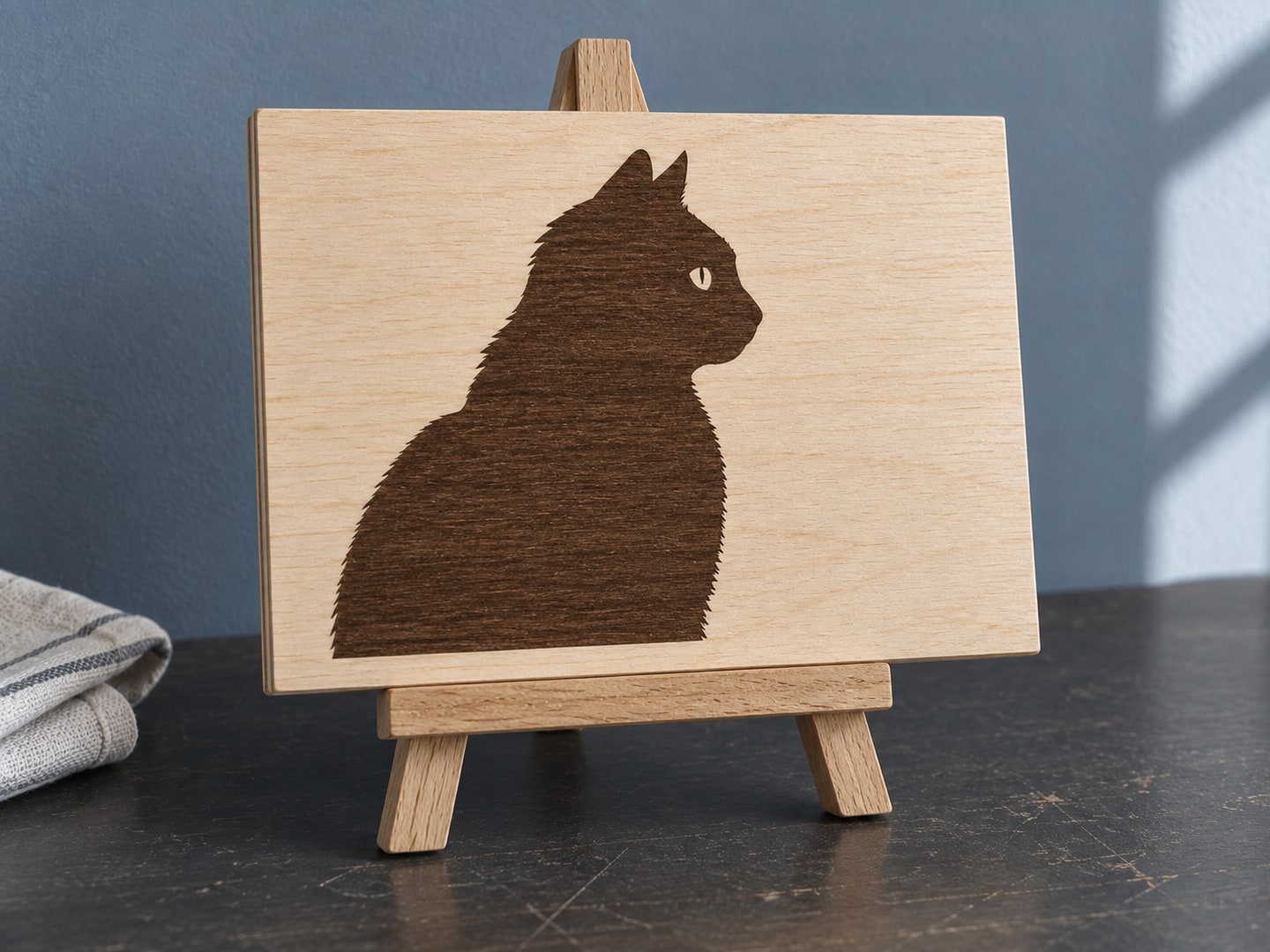
Photo conversion earns its effort when the specific subject is the point: this dog, this person, this wedding. For everything else (general animal silhouettes, decorative elements, sayings, scenes), a professionally drawn SVG beats a trace every time, because it was built as paths from the first stroke: clean nodes, tested detail sizes, no artifacts to scrub out.
The two approaches also combine beautifully. A traced portrait of your customer's dog inside a finished memorial frame design, or a custom silhouette paired with pre-made paw prints and lettering, gives you the personal subject and the polished layout in one piece.
 Dog Lover Silhouette Pack32 designs, commercial license included$3.99
 Cat Lover Silhouette Pack32 designs, commercial license included$3.99
Every pack in our catalog is $3.99, drawn as clean vectors from the start, and ships as SVG, PNG, JPG, PDF, and EPS. And if you want a custom design without starting from a photo at all, Craftgineer's Vector Studio generates cutting-ready SVGs from a text description. Pick the clearest photo you have, give it the preparation it deserves, and the trace will finally look like the pet instead of the noise.
Designs for this project
Frequently Asked Questions
Can Cricut Design Space convert a photo to SVG?
Not really. Design Space can turn a simple high contrast image into a cuttable shape during upload, but it offers almost no control and struggles with photos. You get far better results tracing in Inkscape or an online vectorizer first, then uploading the finished SVG.
What is the best free way to convert a photo to SVG?
Preprocess the photo to high contrast black and white, then vectorize it with Craftgineer's free MonoTrace tool or Inkscape's Trace Bitmap function. Both produce clean cutting-ready paths from a well prepared image.
Do I need an SVG to laser engrave a photo?
No. Laser software such as LightBurn can engrave a grayscale photo directly using dithering, no vectorizing needed. You only need an SVG when something must be cut, scored, or carved along a path, or cut from vinyl.
Why does my traced SVG have thousands of nodes?
The tracer faithfully reproduced pixel noise and soft edges as tiny wobbles, and every wobble costs nodes. Prepare a cleaner, higher contrast source image, raise the smoothing setting, and run Path then Simplify in Inkscape to cut the count down.