You bought a design pack, unzipped it, opened Silhouette Studio, and the SVG files are greyed out. Or worse, the software opened something, but it is a blank page. Nothing is wrong with your machine, and nothing is wrong with the files. You have just met the single most common surprise in the Silhouette world.
This guide covers the whole path from SVG file to finished cut on a Cameo, Portrait, or Curio: the edition question, three ways to import, how to inspect and prepare a design, cut settings without the guesswork, and the multi-layer vinyl workflow.
Tip
Short answer: the free Basic Edition of Silhouette Studio does not open SVG files. The Designer Edition upgrade, a paid one-time license, adds SVG import. Until you upgrade, use the PNG version with Trace or Print & Cut; PDF import also needs an upgraded edition.
The edition question, answered honestly
Silhouette Studio comes in tiers, and the tier decides whether SVG files open at all.
| Edition | Cost | Opens SVG? | Notable additions |
|---|---|---|---|
| Basic | Free | No | Full cutting workflow, .studio3 files, PNG/JPG import |
| Designer | One-time paid upgrade | Yes | SVG import, rhinestone tools, sketch fills, ruler and guides |
| Designer Plus | One-time, more than Designer | Yes | Embroidery file import, advanced rhinestone features |
| Business | One-time, the top tier | Yes | Multi-machine cutting, tiling, automated nesting |
The free Basic Edition supports Silhouette's own .studio3 format and common image formats, but SVG is deliberately behind the paywall. That surprises a lot of new owners, because SVG is the standard format for cut files everywhere else. Cricut's free software opens SVGs; Silhouette's does not.
If you plan to buy designs rather than draw everything yourself, the Designer Edition upgrade pays for itself almost immediately. It is a one-time license, not a subscription, and SVG import alone justifies it. The higher tiers are for specific needs like embroidery or running a multi-machine production setup, and most crafters never need them.
The Basic Edition workaround
You are not stuck while you decide. Every PrintCutCarve pack includes PNG and JPG alongside the SVG. These raster formats give Basic Edition users two routes; SVG and PDF import require Designer Edition or higher:
- Trace the PNG. Open the PNG, then open the Trace panel (the butterfly icon). Draw a selection box around the design, raise the threshold slider until the whole design fills with yellow, and click Trace. Silhouette Studio generates cut lines from the image edges. Delete the original image afterward so it does not print or confuse the preview.
- Print Then Cut. For sticker-style projects, print the PNG on your home printer with registration marks, then let the machine cut around the printed design. Our Print Then Cut guide covers the concept; Silhouette calls its version Print & Cut and the logic is identical.
Tracing works well on clean, high-contrast designs. It struggles with fine detail, because a trace approximates edges from pixels while a real SVG carries the exact curves. Treat it as a bridge, not a destination.
Importing an SVG (Designer Edition and up)
Once you have Designer Edition, getting a design onto the mat takes seconds. Three routes:
- File > Open. Navigate to the SVG and open it. The design lands on a fresh virtual mat with its paths intact.
- Drag and drop. Drag the file from your file browser straight onto the workspace. Fastest option, and it works with several files at once.
- File > Merge. This adds the SVG to your current workspace without replacing what is already there. Use it when you are arranging several designs on one mat to save vinyl.
You can also drag SVGs into your Silhouette Studio library to keep purchased designs organized by collection, which beats digging through download folders every time.
 Dog Lover Silhouette Pack32 designs, commercial license included$3.99
Getting the design ready to cut
An imported SVG is rarely cut-ready at the size and arrangement it arrived in. A few minutes of preparation here saves vinyl later.
Resize without distortion
Click the design and drag a corner handle to resize. Silhouette Studio scales proportionally from the corners by default; the side handles stretch, so avoid them unless you actually want a wider or taller design. For exact dimensions, open the Transform panel and type the width or height with the lock icon enabled.
Because SVG is vector art, resizing costs nothing in quality. A design cuts as cleanly at 10 inches as at 3. What does change is whether fine detail survives the blade, which we will get to below. For the longer story on scaling, see resizing SVG files without losing quality.
Read the cut preview before you trust it
Open the Send panel and look at the red lines. Those are the actual blade paths, and they are the truth about what will cut, regardless of how the design looks in the design view. If you see red lines where you expected none, the file has extra paths: ungroup, click the stray element, and either delete it or set it to No Cut in the Send panel.
This is where file quality shows. A well-built cut file welds its detail into as few compound paths as possible, so the preview shows exactly the silhouette you expect. A messy file, often a free download or an auto-trace, is full of overlapping fragments, stray points, and duplicate paths that each become a blade pass. Our packs are cleaned at the path level before they ship, which is why the preview matches the thumbnail.
Ungroup, edit, regroup
Multi-part designs usually arrive grouped so they move as one unit. Right-click and choose Ungroup to separate the parts, move or recolor or delete individual elements, then select everything and Group again before cutting. If ungrouping once still leaves chunks locked together, those chunks are compound paths; Object > Compound Path > Release breaks them apart, and Make rejoins them.
Changing the displayed fill does not physically recolor your vinyl. It can help organize the job, and Send by Fill Color can use those colors to separate cut selections or settings. Check the Send mode and preview before each color pass.
Cut settings without the folklore
Silhouette Studio ships a long material list in the Send panel, and each entry carries Silhouette's own recommended blade depth, speed, and force for that material. Those presets are the manufacturer's starting points, and they are the right place to begin. Pick the closest match to what is on your mat: glossy adhesive vinyl, smooth heat transfer, cardstock by weight, and so on.
Then verify with a test cut. The Send panel includes a test option that cuts a small square and triangle in a corner of your material. Weed that little shape: for adhesive vinyl, the vinyl should weed cleanly while the release liner stays intact, ideally with little or no visible scoring. If it tears or does not release, add force or a second pass in small steps. If the blade cut through the backing, reduce depth or force.
Two settings habits worth building:
- Change one variable at a time. If the test cut fails, adjust force or depth, not both, so you know what fixed it.
- Log what worked. Vinyl from different brands, and even different rolls, cuts differently. A note on your phone with material, blade, and settings beats re-testing every project.
Blade depth deserves one mental model: the number on an AutoBlade or ratchet blade controls how far the blade tip extends, and the goal is to extend it just past the thickness of the material layer you are cutting, not the backing. Adhesive vinyl is thin, so it wants a shallow setting; cardstock is thick, so it wants a deeper one. When a preset seems wrong for your material, that is the logic to adjust with.
The HTV rule that ruins shirts when you skip it
Standard cut HTV is usually cut with its carrier against the mat and its adhesive side facing up. Printable and specialty products can differ; follow the product instructions. That means the design must be mirrored, or every letter and every asymmetric shape irons on backward. Mirror standard cut HTV before sending and inspect the preview. Do not apply this rule automatically to printable iron-on. Our HTV shirt guide walks the whole shirt workflow.
Cutting multi-layer designs
Layered designs, where two or three vinyl colors stack into one finished decal, are where Silhouette projects start looking professional. The workflow:
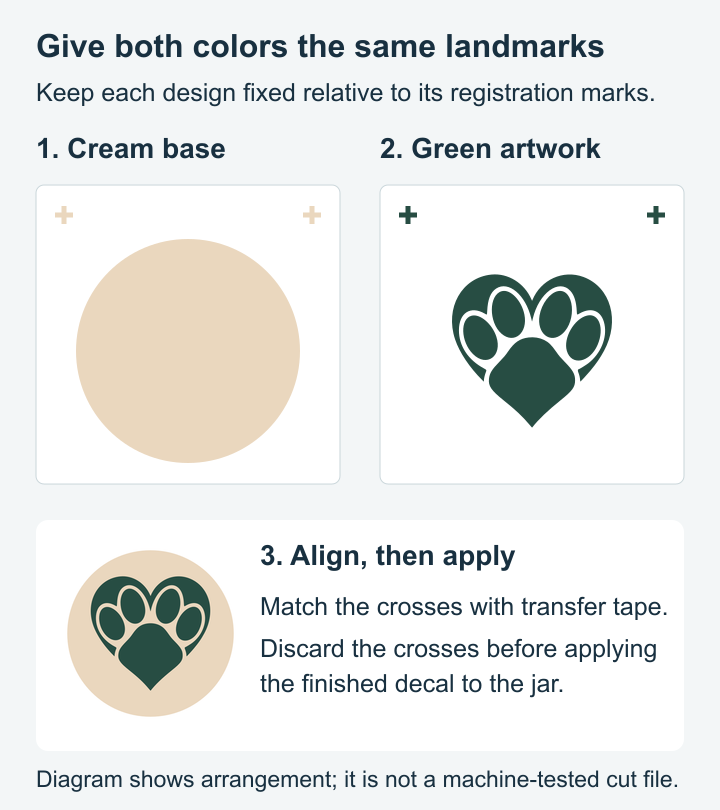
- Ungroup the design and identify each color layer.
- Move all but the first layer off the mat area, or hide them in the layers panel.
- Load the first vinyl color and cut.
- Repeat for each remaining layer on its own vinyl color.
- Weed each piece, then stack the layers with transfer tape, aligning as you go.
Two file-level details make or break this. First, the layers need to be built to register: each layer's position relative to the others is baked into the file, so if you move layers independently and eyeball them back together, alignment suffers. Keep the artwork and its registration marks fixed relative to one another within each color. Separate colors can occupy different physical mat positions; shared registration marks restore their intended relationship during assembly. Second, upper layers should slightly overlap the layers beneath rather than butt against them edge to edge, because a hairline gap between abutted layers is glaring on a finished decal. Our layered designs are drawn with that overlap built in.
The full technique, including weeding order and taping tricks, lives in our layered SVG design guide.
Small habits, better cuts
- Respect the blade. A dull blade tears vinyl instead of slicing it, and torn edges weed miserably. Blades are consumables; cardstock and glitter vinyl dull them fastest.
- Keep the mat sticky. A lint roller pass before each session lifts fuzz and restores grip. Material shifting mid-cut ruins the job.
- Zoom the preview on fine detail. Details narrower than roughly a millimeter weed poorly at small sizes. If a design's thin elements look fragile in the preview, scale the whole design up rather than fighting tiny weeding.
- Use PixScan for printed material. If you need to cut precisely around something already printed, PixScan photographs the mat and positions the cut lines against reality.
What Designer Edition actually gets you
Beyond SVG import, Designer Edition adds features that matter once you cut regularly: rulers and guides for precise layout, the rhinestone tool set, sketch fill patterns, and layout tools. Check the current feature comparison before paying for a particular nesting or production feature.
The decision is simpler than the tier chart makes it look. If you will ever buy SVG designs, get Designer. If you are choosing between machines and this edition business gives you pause, our Cricut vs Silhouette comparison weighs the software trade-offs honestly, because this is the one place Silhouette asks for money where Cricut does not.
Load the mat
Silhouette owners are spoiled for choice once the SVG door is open. Every PrintCutCarve pack is $3.99, ships as SVG, PNG, JPG, PDF, and EPS so both Basic and Designer users are covered, and includes a commercial license so the decals and shirts you cut can be sold. Silhouette-friendly single-path designs are a good starting point:
 Cat Lover Silhouette Pack32 designs, commercial license included$3.99
 Natures Spirit Animal Silhouette Pack28 designs, commercial license included$3.99
 Split Monogram Designs50 designs, commercial license included$3.99
New to SVG files entirely? Start with the beginner's guide to SVG files, then come back and put a mat in the machine.
Designs for this project
Frequently Asked Questions
Can the free version of Silhouette Studio open SVG files?
No. Silhouette Studio Basic Edition opens Silhouette's own .studio3 format plus a handful of image formats, but not SVG. To open SVG files directly you need the Designer Edition upgrade, a paid one-time license. Basic Edition users can trace PNG artwork or import supported DXF files. PDF import also requires an upgraded edition.
How do I cut an SVG in Silhouette Studio if I only have Basic Edition?
Open the PNG version of the design instead, then use the Trace panel to generate cut lines from it. Select the trace area, raise the threshold until the whole design fills yellow, and choose Trace. It adds a step and needs a clean, high-resolution PNG, but it produces cuttable lines without the upgrade.
Why is my SVG cutting every internal line instead of just the outline?
The file's internal detail arrived as separate paths, and Silhouette Studio cuts every path it sees by default. Open the Send panel, check the red cut preview, and use No Cut on lines you don't want, or ungroup the design and delete the extra paths. Well-prepared cut files avoid this by welding detail into a single compound path.