The photo arrives from a customer at ten at night. It is slightly crooked, the background is their kitchen worktop, and the flash has blown out one side of the dog's face. They want it on a slate coaster by Friday. Or the job is smaller than that: a PNG in your pack has a soft drop shadow behind it that will ruin a Print Then Cut, and it has to go.
Neither of those needs a subscription. Every one of them can be done, properly, in software that costs nothing. The catch is that the free editors are not interchangeable. Pick the wrong one and you will spend an hour fighting an interface built for a job you are not doing.
Tip
Short answer: GIMP if you want one editor that does everything and you will invest a weekend learning it. Krita if you are painting original artwork. Photopea if you want something Photoshop shaped in a browser tab. Paint.NET for quick Windows jobs. Craftgineer's Canvas Pro when you cannot install anything at all. Canvas Pro needs a free account, and it exports for free, but keeping a saved project needs a paid plan.
Work out which job you actually have
Most craft photo work falls into a handful of tasks, and each one favours a different tool. Before you download anything, find your row.
| The job | What it demands | Where to start |
|---|---|---|
| Knocking a background out of a customer photo | Good selection tools, a forgiving eraser | GIMP, Photopea |
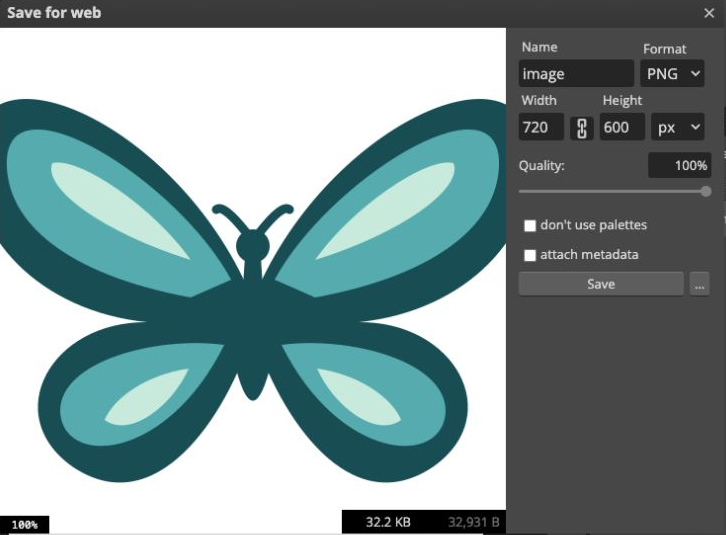
| Prepping a PNG for Print Then Cut or sublimation | Crop, resize, clean transparency on export | Paint.NET, Canvas Pro |
| Fixing contrast in a photo before it becomes artwork | Levels, curves, spot removal | GIMP, Photopea |
| Painting original artwork from scratch | Brush engines and pressure sensitivity | Krita, and nothing else is close |
| Building a listing mockup or a shop banner | Layers, text, blend modes | Photopea, Canvas Pro |
| One small fix on a machine you do not control | Nothing to install | Canvas Pro, Photopea |
If your row says Krita, stop reading the rest and go and get Krita. Painting is the one job here with a clear winner.
GIMP, if you are willing to learn it
GIMP is the genuine article. Layers, layer masks, channels, curves, levels, clone stamp, healing, paths, scripting, and a plugin ecosystem two decades deep. GIMP 3.0, released in 2025, added non-destructive filter editing, which means an adjustment you applied yesterday can be reopened and changed rather than undone and redone. That was the last big thing people pointed at when they said GIMP was not a serious Photoshop alternative.
It is free under the GNU GPL with no tier above it, it runs on Windows, macOS and Linux, and nothing you make in it carries a watermark or a licence restriction.
The interface is what puts people off, and it deserves to. GIMP does not use the vocabulary you learned somewhere else, and three things in particular catch every newcomer in the first ten minutes:
- Ctrl+S does not make a PNG. Saving in GIMP produces an XCF, which is GIMP's own layered working file. To get a PNG or a JPG you use File > Export As. People lose work to this, or think GIMP has corrupted their file when it has simply saved exactly what they asked for.
- Selections are modal in a way that surprises you. Free Select, Fuzzy Select and Select by Colour behave differently from their Photoshop cousins, and the Tool Options panel underneath the toolbox changes what each one does. If a tool seems broken, look at Tool Options before you look anywhere else.
- Nothing happens outside a selection or the active layer. Half of "GIMP is not doing anything" is a stray selection still active from four steps ago. Select > None, then try again.
Push through those and GIMP will do anything you need for craft work. Knock a background out of a pet photo, flatten harsh shadows before the photo becomes engraving artwork, batch resize a folder of listing images, build a mockup with text over a product shot. There is no ceiling you will hit.
The honest downside is not capability, it is time. GIMP asks for a weekend before it stops feeling hostile. If you only ever need one thing done once, that is a terrible trade.
Krita is a painting studio that happens to open PNGs
Krita is not a photo editor and does not pretend to be. It is a digital painting application, and it is superb at it. The brush engines are the point: dozens of them, deeply configurable, with a stabiliser that smooths a shaky line and proper pressure sensitivity on any decent tablet. If you draw your own designs rather than buying them, Krita is the best free tool on this list by a wide margin, and it competes with paid painting software rather than losing to it.
Two features matter specifically for makers. Wrap-around mode tiles your canvas live while you paint, so you can build a seamless repeating pattern for sublimation fabric or patterned vinyl and see the joins as you work. And Krita's animation timeline is there if you ever want a moving mockup for a shop listing.
Where it falls down is retouching. Krita has levels and curves and filter layers, but it has nothing like GIMP's healing brush workflow, and its selection tools are built for masking a painting rather than cutting a person out of a photo. Do not choose Krita to fix a customer's snapshot.
One thing worth knowing: Krita is free from krita.org, but the versions on Steam and the Microsoft Store are paid. That is not a trap, it is how the project raises money, and the paid build is the same software. Download from the website if you want it for nothing, buy it from a store if you want to support the developers.
Photopea: Photoshop in a browser tab, near enough
Photopea is a one man project that has quietly become the most useful free image editor most crafters have never opened. It runs in a browser with no installation, and the interface is close enough to Photoshop that tutorials written for Photoshop mostly just work.
What makes it genuinely different from everything else here is what it can open:
- PSD files with layers intact, which matters when a designer or a print supplier sends you one
- XCF, so GIMP files come across
- AI, PDF and SVG, with the usual caveats about fonts
- Sketch and XD, if you ever inherit a design file from a web person
Layer masks, adjustment layers, blend modes, smart objects and the pen tool are all present. For building a listing mockup or opening a template a supplier sent, it is often the fastest route from problem to finished file.
The free tier is ad supported, and the ads sit in a panel down the side rather than interrupting you. Check current plan details for account features; do not assume the free tier has a particular undo limit. A paid tier removes the ads. Photopea's own position is that your files are processed in your browser rather than uploaded to a server, which is worth knowing if you are handling customer photos and would rather they did not travel.
A keyboard and a larger screen make detailed editing much easier. Photopea also supports vector shapes and bitmap vectorization. The exported paths still need checking for the intended cut, as the next section explains.
Paint.NET, for the five minute job on Windows
Paint.NET is the one nobody writes roundups about, and it is the one plenty of makers actually use. It opens in about a second, it has layers and a large library of community plugins, and you can be productive in it inside ten minutes with no tutorial. Crop, straighten, resize, erase a background, drop a logo on top, export a transparent PNG. Done, and the window was never confusing.
It is Windows only, so Mac and Chromebook users can skip it. It is free from getpaint.net, and like Krita the Microsoft Store listing is a paid version that funds the developer. And it stops well short of GIMP: masking and channel work are not part of it in any deep sense, so complicated compositing gets awkward fast.
That is a fair trade rather than a failing. Paint.NET is what you install when you want a better Microsoft Paint, not a free Photoshop, and most days a better Paint is exactly the tool the job needs.
Canvas Pro, when you cannot install anything
Sometimes the blocker is not skill or money, it is permission. A work laptop that refuses installers. A Chromebook. A borrowed machine at the craft fair. Or simply one job at eleven at night that does not justify downloading a 300MB application and learning where its buttons live.
Craftgineer's Canvas Pro is a raster editor that runs in a browser tab. Craftgineer is our sister site, so treat this as a recommendation with an interest attached, and judge it on the same terms as everything else here. Layers, brushes, adjustments, crop, gradients, retouch, clone stamp, text and shapes are all there, and it exports PNG, JPG, WebP and SVG.
Here is the part worth being straight about, because finding it out halfway through a job is annoying:
- It needs a free Craftgineer account. Opening the link sends you to a sign in first. It costs nothing, but it is not a tool you can use anonymously.
- Using it and exporting from it are free. There is no watermark and no export charge.
- Saving a project is not. Keeping a file to come back to next week sits behind a paid plan, which starts at $4.99 a month. Finish and export in one sitting, or your work goes when the tab does.
That save limit shapes what it is good for. A single defined task, done now, exported now. Knock the background out, straighten the photo, drop the text on, export the PNG, close the tab. For that job the browser tool wins outright, because the installation and the learning curve on the desktop options are the whole cost and here they are zero.
For an ongoing project you keep returning to across a fortnight, GIMP or Photopea is the better home. That is not a knock on Canvas Pro, it is what a project file is for.
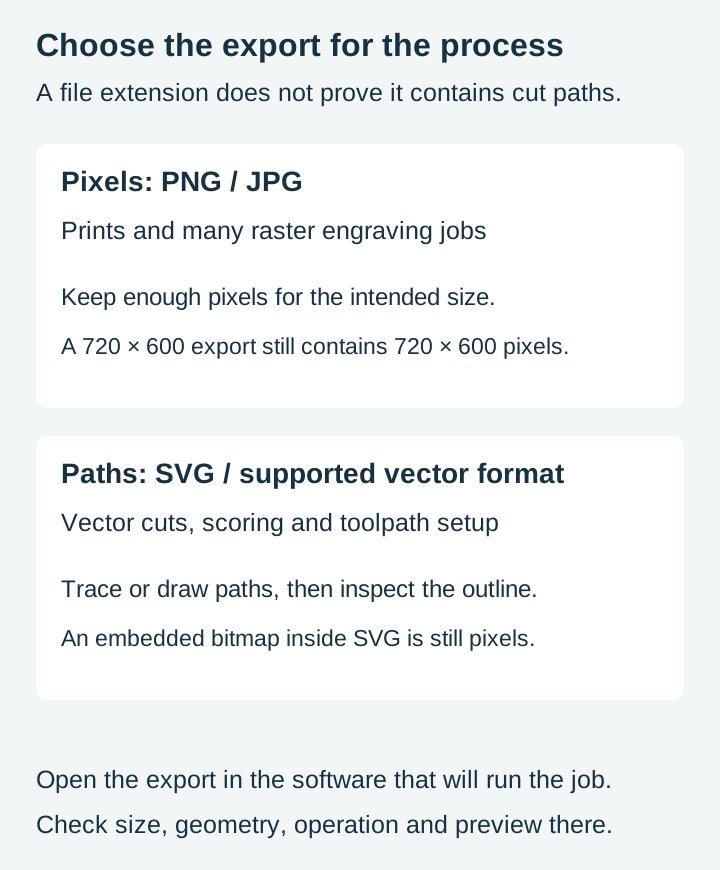
Check Whether the Export Contains Pixels or Paths
These editors emphasize raster work, but some also create vector paths. Photopea documents vector drawing and bitmap vectorization. GIMP can export paths as SVG. The useful question is what your exported file actually contains.
For vector cutting, the software needs mathematical paths to follow. Raster engraving is different: many laser applications can process a photograph directly. A PNG scaled up in any of these editors goes soft and blocky, which is why resizing an SVG behaves so differently from resizing a photo. Photopea and Canvas Pro can both write an SVG file, but writing the format is not the same as producing clean paths a machine will cut well.
When you need a vector cut from a photograph, clean the image first, then trace or redraw the required paths using suitable tools. When you need a printed image or raster engraving, tracing may not be necessary. We covered the conversion side in turning photos into SVG files for cutting and engraving, and if the file you end up with needs its nodes tidied or a name added, Inkscape does that for free.
For Print Then Cut and sublimation, where raster artwork is often the deliverable. Print Then Cut still needs setup in the cutter’s software, and sublimation needs an appropriate print workflow. A clean, correctly sized PNG with honest transparency is exactly what those processes want.
Picking one, in a sentence each
- GIMP if you want one free editor for the next ten years and you accept a learning curve.
- Krita if you draw. Nothing else free comes close, and it is not a photo editor.
- Photopea if you want Photoshop habits to transfer and you need to open PSD files.
- Paint.NET if you are on Windows and you want the quick job done without thinking.
- Canvas Pro if you cannot install software, or you have exactly one thing to do right now.
Plenty of makers end up with two. Something heavy for the real work, and something in a browser tab for the fix that turns up while you are away from your own desk.
Whichever you pick, the artwork is the part that decides whether the finished piece looks bought or homemade. Our design packs ship as SVG, PNG, JPG, PDF and EPS for $3.99, so the raster and vector versions are both already in the folder and there is nothing to convert before you start. A commercial licence is included with every one, print on demand included, so anything you make with them is yours to sell.
 Animals In Shades Design Pack78 designs, commercial license included$3.99
Browse the full shop if you would rather start from artwork that is already cut-ready than build it from scratch.
Designs for this project
Frequently Asked Questions
Is GIMP really free to use for products I sell?
Yes. GIMP is open source under the GNU GPL. There is no paid tier, no watermark and no licence to buy, and anything you make in it is yours to sell. The only licence that limits you is the one attached to the artwork or photo you started from.
Can a free image editor make a cut file?
Some can. Photopea has vector drawing and bitmap vectorization, and GIMP can export its paths as SVG. A pixel layer saved inside an SVG is still pixels, so inspect the exported geometry before cutting. Raster artwork can be used directly for printing and many engraving workflows.
Which free image editor works on a Chromebook?
Photopea and Canvas Pro run in a browser. Krita also offers a ChromeOS build for compatible devices. GIMP may be available through a Chromebook’s Linux environment when that feature is supported and permitted; Paint.NET remains Windows-only.
Do I have to pay for Canvas Pro?
You need a free Craftgineer account to open it, and using it and exporting PNG, JPG, WebP or SVG costs nothing. Saving a project to come back to later is the part that sits behind a paid plan, so finish the job in one sitting and export before you close the tab.