The print looks great. The cut does not. Every sticker on the sheet is sliced a millimetre to the left, so one edge shows white paper and the other has clipped the artwork. Or worse, the machine simply refuses, flashing an error that it cannot read the registration marks, and you are left holding a perfectly good printed page and a cutter that will not touch it.
Print Then Cut has more moving parts than ordinary vinyl cutting, because a printer, a sensor and a blade all have to agree about where things are. The good news is that the failures come from a short list, and most of them are fixed before you press print.
Tip
Short answer: print a PNG with a transparent background at 100% scale on plain white printable stock, leave bleed turned on, put the sheet on a LightGrip mat under even indirect light, and calibrate Print Then Cut once from the Design Space menu. Those five things account for nearly every alignment problem.
What is actually happening
Normal cutting is one machine doing one job. Print Then Cut splits the work: your home printer produces all the colour and detail, and the Cricut cuts the outline afterwards.
The link between the two is a set of registration marks that Design Space prints around your design, printed black sensor marks whose arrangement depends on the machine and page layout. An optical sensor on the machine finds those marks and uses them to work out exactly where the sheet sits on the mat, including any small rotation. Everything the blade does afterwards is measured from that reading.
Which means the sensor is the whole system. If it reads the marks accurately, the cut lands accurately. If anything interferes with the reading, no amount of care elsewhere will save the job.
Why PNG is the natural input
A PNG can carry a transparent background, and transparency is what tells Design Space where the artwork ends. Upload a PNG with transparency and the software traces the visible edge, giving you a cut line that follows the shape of the design.
Upload a flattened JPG of the same artwork and you get a white rectangle, because there is no transparency for anything to read. You can remove the background with the Design Space upload tools, but that is a manual job on every file and it never quite matches a properly made alpha channel.
SVG works too, once flattened, which merges every layer into a single printable image. That is genuinely useful when you want to combine several designs into one printed sheet. For a single sticker, PNG is simply less work.
Every pack in our catalogue includes high resolution PNG files with real transparent backgrounds alongside the SVG, PDF, EPS and JPG versions, so the Print Then Cut route is available for every design without any conversion.
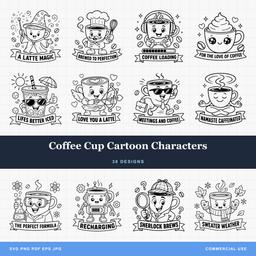 Coffee Cup Cartoon Characters30 designs, commercial license included$3.99
What makes a PNG print and cut well
Since files are what we make, here is what separates a PNG that behaves from one that fights you.
Real transparency, not a white background. The alpha channel has to be genuinely empty around the artwork. A near-white background at 99% opacity looks transparent on a white canvas and traces as a rectangle.
Enough resolution for the printed size. Print quality is set by pixels per printed inch, not by the pixel count alone. An image that is fine at two inches wide will look soft at six. If your design is going on the page at four inches and you want crisp results, you want the file to comfortably exceed 300 pixels per inch at that size.
Clean edges rather than heavily feathered ones. Anti aliasing gives a smooth edge and is fine. A soft glow or a long feathered fade is not, because the cut line has to be drawn somewhere in that gradient, and wherever it lands there will be a visible partially transparent fringe.
No semi transparent drop shadows. They look lovely on screen and print as grey haze on white sticker paper, and the trace often includes them, so your cut line balloons outward around an invisible shape.
The size limit, and where to check yours
Print Then Cut reserves part of each sheet for sensor marks. The usable area depends on your machine, page size and design proportions; it is not always a full rectangle. Check Cricut’s current sizing guide and the Make It preview before planning a sheet.
Cricut has raised that limit on some machines and in some configurations, and it varies by model, so treat any number you read online as provisional. Cricut's Help Center documents the current maximum for each machine and is the source to check before you plan a big sheet. Design Space also tells you directly: if your design exceeds the limit, Make It will refuse and say so.
Two model specific notes from Cricut's documentation are worth knowing. The original Cricut Joy does not support Print Then Cut at all. And machines differ in whether they will read marks on anything other than plain white stock.
Step by step
-
Upload the PNG. In Design Space, choose Upload, then Upload Image, and select the file. With real transparency it should preview without a white box behind it. Save it as a Print Then Cut image rather than a cut image.
-
Add it to the canvas and size it. Resize to the finished dimension you want. Do this now rather than after flattening, because scaling a flattened image up is where softness creeps in.
-
Arrange multiple designs if you are filling a sheet. Several small stickers on one page is far more economical than one per sheet. Keep a little space between them so the blade has somewhere to travel.
-
Flatten if needed. A single PNG is already flat. If you have combined several elements, or added text over the image, select them all and choose Flatten so they print as one image with one cut line.
-
Press Make It and check the preview. You will see the print layout with the registration border around it. Confirm nothing overlaps the marks and nothing has drifted off the printable area.
-
Send to printer, and mind the dialog. This is where jobs are lost. Set the paper size to match your stock, set quality to the highest setting, set the material type to match what you loaded, and above all set scaling to 100%. A printer quietly scaling to fit will shrink the design and the registration marks together, and the sensor will find marks in the wrong place.
-
Load and cut. Printed side up on a LightGrip mat, pressed down flat, no curl at the corners. The machine scans, finds the marks, then cuts.
The sensor's short list of demands
Even, moderate light. Direct sunlight on the mat and a dim room both cause read failures. Indirect daylight or normal room lighting is what works.
Clean black marks. Streaky or banded printing from a low cartridge makes the marks ambiguous. If the border looks patchy, run a nozzle clean and reprint before blaming the machine.
Compatible printable stock. Matte white material is a useful starting point. Support for coloured, glossy and patterned stock varies by machine; check Cricut’s material compatibility guidance for your model.
Readable marks and the right laminate workflow. Keep sensor marks clean and follow your material’s instructions. Cricut Printable Waterproof Sticker Sets require the supplied laminate before cutting, using a compatible machine and the matching material setting. An arbitrary glossy film can interfere with a sensor.
A clean lens. The optical sensor picks up dust like everything else. A soft dry cloth, occasionally, is enough.
Bleed, and why to leave it on
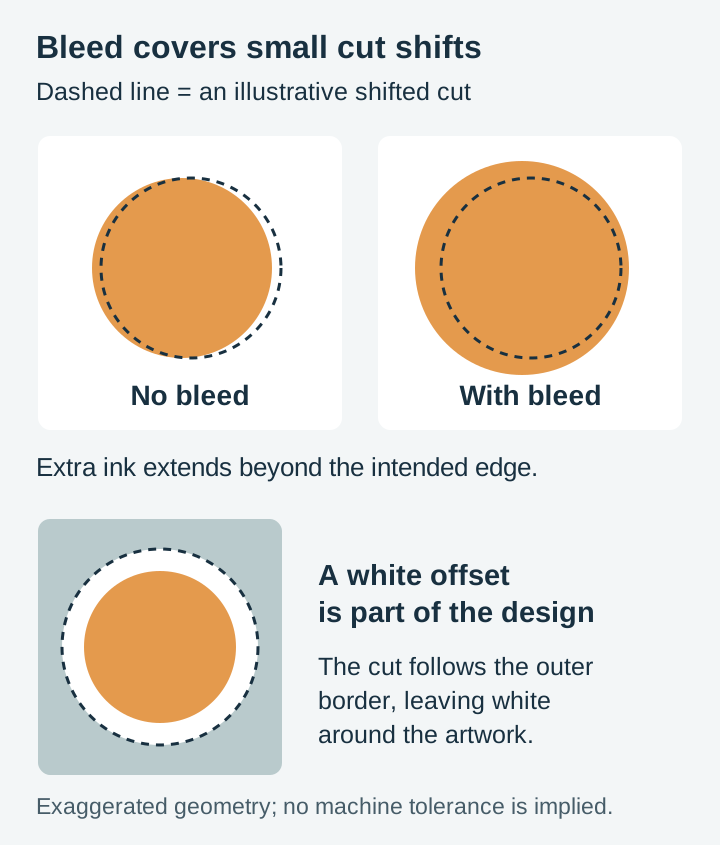
Design Space offers a bleed option when you send a Print Then Cut job. Bleed extends the printed colour a small distance beyond where the cut will fall.
The reason is simple. No print and cut system on earth is perfect to the last fraction of a millimetre, and a cut that lands slightly inside the artwork is invisible while a cut that lands slightly outside it leaves a white sliver along one edge. Bleed means the blade is cutting through colour either way.
Leave it on by default. The one case for turning it off is a design that already has an intentional white border, a sticker style outline, where you want that border to stay exactly the width you drew it rather than having colour pushed into it.
Materials
| Material | Best for | Watch out for |
|---|---|---|
| Matte printable sticker paper | Planner stickers, labels, gift tags | Absorbs ink, so colours read slightly softer than on screen |
| Glossy printable sticker paper | Product labels, decorative stickers | Needs to dry fully before the mat, or it smears |
| Printable vinyl | Waterproof and outdoor stickers | Follow the specific vinyl and laminate workflow |
| Printable iron-on | Multi colour fabric transfers | Check the product instructions; Cricut Printable Iron-On is not mirrored |
| White cardstock | Gift tags, cake toppers, place cards | Heavier stock may need the mat pressed down firmly at the corners |
| Printable magnet sheet | Fridge magnets, promotional pieces | Thickness affects blade depth, and not all machines are rated for it |
Ink type matters as much as paper. Dye based inks are vivid and not water resistant; pigment inks are more durable and slightly less saturated. For stickers that will meet moisture, choose compatible printable stock and laminate, and follow their application and care instructions. Cricut Printable Iron-On has its own printing instructions, including printing without mirroring; do not borrow the mirror rule from ordinary HTV.
Calibration
If everything reads correctly but the cut is consistently offset in the same direction, the machine needs calibrating rather than fixing. Open the machine calibration controls in Design Space and follow the prompts for your model. Cricut’s calibration guide shows the current steps; the screens and test sheet vary by machine.
Do it once per machine, and again if you move to a different Cricut. Calibration corrects a systematic offset. It will not help with a random offset that changes sheet to sheet, which is a loading or scaling problem instead.
Troubleshooting
| Symptom | Most likely cause | Fix |
|---|---|---|
| Cannot read registration marks | Lighting, or non white stock | Move away from direct sun, use plain white stock, reprint if marks are streaky |
| Cut consistently offset one way | Machine not calibrated | Run Print Then Cut calibration |
| Cut offset differently each sheet | Printer scaling, or a loose mat | Set scaling to 100%, press the sheet flat, check mat tack |
| Cut line traces a rectangle | PNG has no real transparency | Use a PNG with an alpha channel, or remove the background on upload |
| Cut line sits away from the artwork | Soft glow or shadow being traced | Use a version without the glow, or tighten the trace threshold |
| Colours look dull compared to screen | Paper type setting, or dye ink on matte stock | Set the correct media type in the printer dialog, try glossy stock |
| Design Space refuses the size | Over the printable area limit | Reduce the size or split across sheets |
What to make first
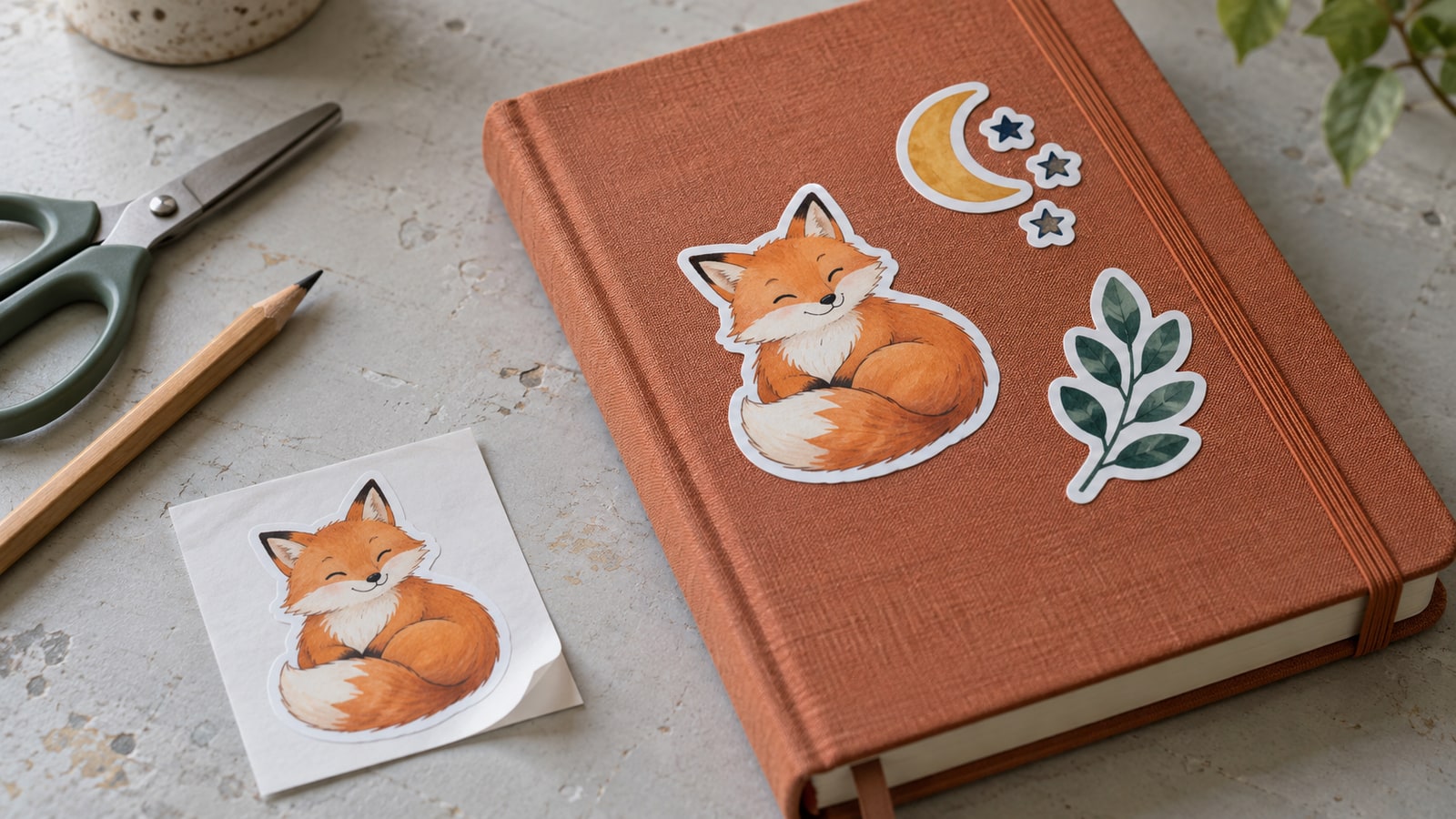
Sticker sheets are the obvious starting point and the reason most people enable the feature at all. Small full colour characters, affirmations and animal designs all print well at sticker scale because the colour is doing the work rather than fine cut detail.
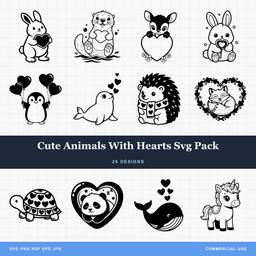 Cute Animals With Hearts Svg Pack26 designs, commercial license included$3.99
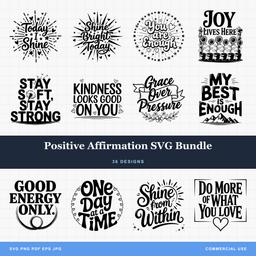 Positive Affirmation Svg Bundle36 designs, commercial license included$3.99
Beyond stickers, Print Then Cut earns its place anywhere you want more colour than vinyl can practically deliver: product labels for a small business, full colour cake toppers, planner tabs, and printable iron-on transfers for detailed shirt designs.
Get printing
Every pack we sell is $3.99 and includes transparent background PNG files alongside SVG, JPG, PDF and EPS. A commercial licence comes with every purchase, so the sticker sheets and labels you produce are yours to sell, with the single limit that the digital files themselves stay with you.
Browse the full shop or start with the quotes and text collection for sayings that work at sticker size.
For more on which format suits which job, read our format comparison guide. For ordinary vinyl cutting in Design Space, our Cricut SVG guide covers the standard workflow, and understanding SVG layers explains why flattening does what it does.
Designs for this project
Frequently Asked Questions
Why can't my Cricut read the registration marks?
The sensor needs even, moderate light and clean black marks on white paper. Direct sunlight, a dark room, a smudged or streaky print, coloured or off-white paper, or a design placed too close to the marks will all defeat it. Move the machine out of glare, reprint if the marks look banded, and use plain white printable stock.
Does Print Then Cut work with SVG files?
It works, but you have to flatten the design first, which merges the layers into one printable image. A PNG with a transparent background arrives already flat, which is why PNG is the simpler input for stickers and labels.
What is bleed and should I leave it on?
Bleed extends the printed colour slightly past the cut line, so a cut that lands a fraction off still lands in ink rather than on white paper. Leave it on for almost everything. Turn it off only when the design already includes a deliberate white border you do not want colour bleeding into.
Why is my cut slightly offset from the print?
Run the Print Then Cut calibration from the Design Space menu. Follow the current calibration prompts for your machine; the test sheet and alignment steps vary by model. Recalibrate if you change machines, and check that your printer scaling was set to 100% rather than fit to page.