The file is nearly right. One path has a gap in it and your cutting software is filling in a shape that should be an outline, or a stray point is pulling a curve into a dent, or you need to delete one element before the design fits the blank. Some cutting applications stop at object-level changes; others, including Silhouette Studio, also let you edit the points that form the outline.
So you go looking for a free vector editor, and the lists you find are years out of date. Half the "free forever" browser tools now want a card number. The one everybody recommends is a 100 MB download with a learning curve attached.
Tip
Short answer: if you will be editing files regularly, install Inkscape and give it an evening. If you have one path to fix right now and no desire to install anything, use a browser node editor. Those are two different jobs and they want different tools.
Work out which job you have first
Almost every bad tool recommendation comes from skipping this step. There are three different situations hiding behind "I need to edit an SVG", and the right answer changes completely between them.
The one-off repair. A file you downloaded needs one fix before it will cut. You may never open a vector editor again this month. Installing a full desktop suite for this is absurd, like buying a table saw to shorten one shelf.
Real design work. You are combining designs, building your own layered artwork, drawing shapes from scratch, preparing files for sale. This is a craft, and it deserves a proper tool that you learn once and keep.
Occasional but genuine editing. Once or twice a week you personalise a design, knock a name out of a plaque, or clean up a trace. You want something capable but you do not want to relearn an interface every time.
The rest of this is which tool fits which of those.
The options at a glance
| Editor | Where it runs | What it costs | Node and path editing | Best for |
|---|---|---|---|---|
| Inkscape | Desktop install, Windows, macOS, Linux | Free and open source, no account | Full | Real design work |
| NodeCraft | Browser | Free with a free account, saving a project needs a paid plan | Yes, real node and path tools | The one-off repair |
| Boxy SVG | Browser and app stores | Free trial, then paid | Full | Occasional editing, if you will pay |
| Method Draw | Browser | Free, open source, no account | Basic | A quick look or a quick nudge |
| Vectr | Browser | Sign-up, trial, credits on some features | Basic | Hard to recommend now, see below |
Inkscape: the most capable, and the heaviest
If someone tells you Inkscape is the answer, they are right, and they are usually leaving out the price. It is not money. It is your evening.
Inkscape is a complete vector editor: node editing, boolean path operations, text on paths, tracing, layers, precise dimensions, the lot. It is open source under the GPL, there is no account, no watermark and no trial clock, and it edits SVG natively rather than importing and exporting it. For a maker who sells finished work, that native handling matters, although edits and export precision can still change geometry, so compare the saved copy.
The cost is real though. It is a substantial download, it wants install rights on the machine, and the interface makes no attempt to guess what you came for. Panels everywhere, three ways to do most things, terminology borrowed from the SVG spec rather than from craft. Nobody opens Inkscape for the first time and fixes their file in four minutes.
Give it an evening and it pays that back permanently. We have a full walkthrough in how to edit SVG files in Inkscape, covering colours, text conversion, exact resizing, the boolean operations, and the cleanup pass that decides whether a file cuts properly. If you have landed on "I should learn one vector editor and be done with it", stop reading here and go and read that one instead.
When installing anything is the wrong answer
Here is the scenario the desktop advice ignores. You bought a design, you are twenty minutes from starting a cut, and one path in the file is broken. You do not want a new application in your dock. You want the file fixed.
That job needs a browser tool with genuine node editing, which is rarer than it should be. Plenty of online "SVG editors" will let you drag whole objects around, change fill colours and add a text box. Far fewer let you select an individual point on a path and move it, delete it, or close a gap between it and its neighbour. Object shuffling is not path repair.
Craftgineer's NodeCraft is a vector editor that runs in the browser with real node and path editing, which puts it in the small group that can actually do this job. Craftgineer is our sister site, so take the recommendation with that in mind and check it against the facts, which are these:
- The tool is free to use and free to export from.
- It requires a free account. Everything on Craftgineer redirects to sign-in, so there is no "open the link and start editing" without one.
- Saving a project is gated behind a paid plan. You can open a file, edit it, and export the result for nothing. Keeping an editable project on their servers is the paid part, and their plans start at $4.99 a month.
For the one-off repair that is a fine trade, because there is no project to keep. You open the SVG, fix the path, export it, cut it. If your workflow depends on returning to a half-finished document tomorrow, either pay for that or work locally in Inkscape, where saving is just saving.
The honest summary: it wins on "nothing to install", not on "does more than Inkscape". Nothing in a browser does more than Inkscape.
Boxy SVG: good, and not free
Boxy SVG deserves a mention because it keeps appearing on free editor lists where it no longer belongs. It is a well-built SVG editor that runs in a browser and also ships through app stores, and it is genuinely pleasant: a tidy interface, proper path tools, and a bias towards clean output that a lot of general design tools lack.
It is not free. There is a free trial, and after that it is a paid product. Third-party software directories currently list the web app as subscription only with a trial period and no permanent free tier, and pricing has changed more than once over the years, so check the current terms on their own site rather than trusting any article, this one included.
Worth paying for? If you are in the "occasional but genuine editing" group, are put off by Inkscape's interface, and would rather have something lighter that you use every week, yes, that is a reasonable purchase. If you need one path fixed today, obviously not.
Vectr: the recommendation that stopped being true
Vectr shows up on nearly every "free online vector editor" list, usually copied from a list written years ago. It used to be exactly what those lists describe: a simple, free, browser-based editor good for light work.
That is not what you find now. Vectr's own site presents it as a cloud-based AI vector and logo maker, with sign-up, a free trial, and credits attached to some features, including opening certain file formats. Reviews of its current form describe a shift away from the old free-forever model to subscription plans with credit allowances.
None of that makes it a bad product. It does make it a bad answer to "what is a free vector editor", and it is worth knowing before you sign up expecting the tool from the blog post you read.
The general lesson is worth more than the specific one. Free browser tools change their business model quietly, and craft articles do not get updated when they do. Before you commit a project to any of them, check what the tool's own site says today.
Method Draw: the small honest one
Sometimes the right tool is the least impressive one. Method Draw is an open source browser SVG editor, forked from SVG-Edit years ago, and it opens instantly with no sign-up and no trial.
It is a light editor and it does not pretend otherwise. You can open an SVG, move things, draw basic shapes and paths, edit text, do simple point-level work, and export SVG. You will not find the deep path operations or the precision controls a serious job needs.
Where it earns its keep is the ten-second question. Is that shape actually a group or one path? Is there something invisible sitting outside the artwork? Did that element survive the conversion I just did? Opening a file in something free and instant to answer a question is a genuinely useful habit, and it costs nothing to try.
What "editing an SVG" actually means
This is the part that decides whether a tool can help you, and it has nothing to do with which brand you choose.
An SVG design is made of paths. Each path is a sequence of nodes, and between the nodes the curve is described by handles that pull it into shape. Editing objects means moving whole paths around. Editing nodes means changing the shape itself. Only the second one fixes a broken outline.
Three common repairs involve paths, compound shapes or document cleanup:
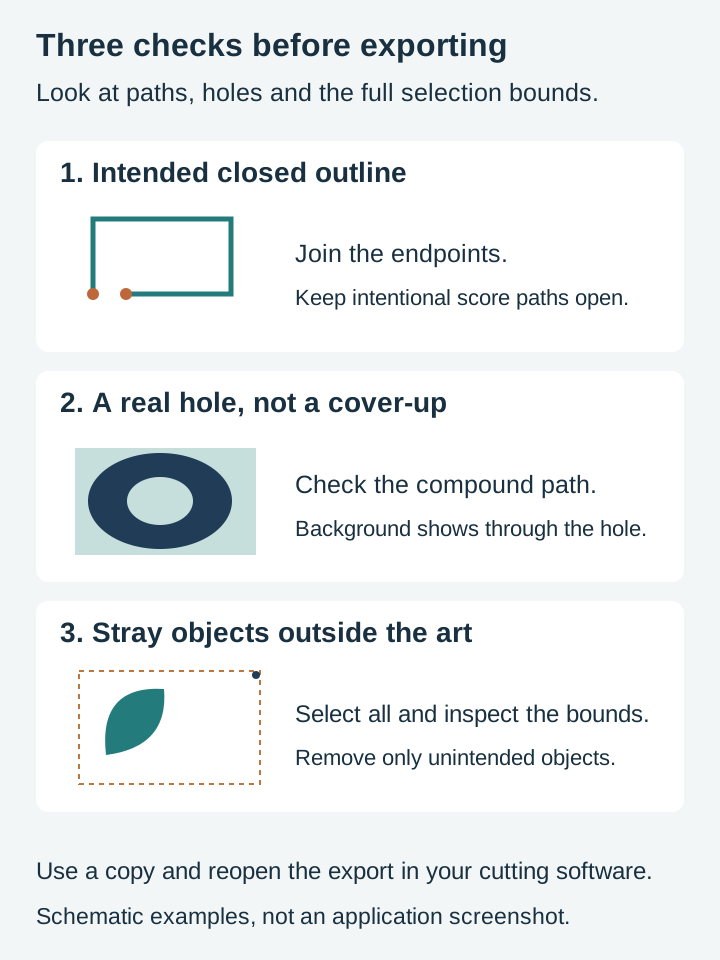
A gap in a path that should be closed. It fills strangely on screen, and cutting or V-carving software wants closed shapes to work from. For an intended closed outline, join the loose endpoints and inspect the resulting segment. Open paths can be valid for scoring; do not close them indiscriminately.
A counter that has stopped being a hole. The middle of an O, the gaps in a stencil, the negative spaces in an ornament. These are compound paths, one shape with an inner shape subtracted. Releasing or breaking apart the compound path can turn the inner subpath into a filled shape. Ordinary ungrouping is a different operation. It looks nearly right and cuts completely wrong.
Far too many nodes. Auto-traced artwork routinely carries thousands of points describing a curve that needs a few dozen. Redundant points can burden editing; noisy short segments can affect motion. A high node count does not by itself make a curve faceted. That is a big enough subject to have its own guide: why some SVGs have too many nodes and cut badly covers where the bloat comes from and how to reduce it without wrecking the shape.
The connection between those two posts is the practical point here. That guide tells you what is wrong with a path. A node editor is how you fix it by hand when an automatic simplify pass takes the corners off with it.
It also helps to know how a file is built before you start pulling it apart. If the design is a stack of coloured layers meant to be cut separately, editing one of them in isolation will quietly break the registration between them, which is what SVG layers actually are in more detail.
Check These Workflow Limits
Being straight about limits is more useful than another feature list.
Toolpaths and G-code. Vector editors prepare artwork. Use suitable CAM or cutting software to generate toolpaths and run the machine. Some applications combine these roles; being browser-based does not determine their capabilities.
Tracing a photograph well. Tracing support and quality vary by tool, source image and settings. Inkscape and some browser tools offer tracing, but every result needs inspection. If you are converting an image to paths, use a tool built for it. Craftgineer's MonoTrace is free with a free account and is another option to compare using your own source image.
Very large files, comfortably. A browser tab has less memory headroom than a desktop application. A 200 design bundle opened all at once will crawl anywhere, and it will crawl sooner in a tab. Open the single file you need.
Working offline. Check the specific editor and its file-saving behavior before relying on it without a connection. Some browser applications can be installed or run locally; others depend on online services.
So, which one
- You will edit files regularly and can install software. Inkscape. Nothing else in this list is more capable, and the evening it costs you is a one-time payment.
- You have one file to fix right now. A browser node editor. NodeCraft does the job with a free account, exports free, and only charges if you want to keep the project saved.
- You cannot install anything, on a Chromebook or a managed work laptop. Browser only, and that is not a compromise. It is the whole reason these tools exist.
- You edit weekly, dislike Inkscape's interface and will pay a little. Boxy SVG, after checking its current pricing yourself.
- You just want to look inside a file for ten seconds. Method Draw.
- You read somewhere that Vectr is the free option. Check its site before you plan around it.
One habit regardless of tool: duplicate the file before you touch it. An editor may overwrite a file or export a new download, and a design you paid for should survive a bad half hour of experimenting.
Files that need less editing in the first place
The best editing session is the one you never have to run. Our packs are built as clean paths with the layers separated and the compound shapes intact, which is the difference between opening a file to personalise it and opening a file to repair it.
 Family Sayings & Sign Designs30 designs, commercial license included$3.99
Every pack is $3.99, ships as SVG, PNG, JPG, PDF and EPS, and includes a commercial licence, so the finished pieces are yours to sell. Have a look at the quotes and text collection for designs that take a name well, or browse the full shop. New to cut files altogether? Start with the beginner's guide to SVG files.
Designs for this project
Frequently Asked Questions
Can I just edit the SVG in Cricut Design Space or Silhouette Studio?
Only up to a point. Both let you resize, recolour, ungroup, weld and slice, which covers a lot of everyday changes. Silhouette Studio also has Point Editing, including in Basic Edition; SVG import requires Designer Edition or above. Design Space does not offer the same general node-editing workflow. Check the tools your software already has before adding another editor.
Is there a genuinely free vector editor that needs no account at all?
Inkscape, if you are willing to install it. In the browser, Method Draw is open source, opens instantly and asks for nothing, but it is a light editor rather than a full one. Most other browser editors now sit behind a sign-in, a trial, or both.
Will editing an SVG damage the cut file?
Not if you work on a copy and check three things before saving: that paths you expect to be closed are closed, that holes such as the middle of a letter O are still holes rather than filled discs sitting on top, and that nothing invisible is parked outside the artwork inflating the bounding box.
Do these work on a Chromebook or a locked-down work laptop?
The browser ones do, which is their real advantage. Inkscape needs install rights, and on a managed machine you may not have them. If you cannot install software, a browser vector editor is not a compromise, it is the only option.