You download a design pack, open a file, and something looks off. The preview shows a crisp two colour fox, but your software shows one flat shape. Or the opposite happens and a single design explodes into eleven separate coloured pieces you did not ask for, each on its own mat, and you have no idea which one goes down first.
Both situations come from the same thing: layers. Layers are the part of a cut file most makers learn by accident, usually halfway through a project with vinyl already on the mat. Learning them on purpose takes about ten minutes and saves an enormous amount of material.
Tip
Short answer: an SVG "layer" is a group of shapes sharing one fill colour. Your cutting software splits the design by those colours and gives each one its own mat. The colours in the file are labels for separating layers, not instructions about what material to use.
What a layer actually is inside the file
Open an SVG in a text editor sometime. It is not a picture. It is a list of instructions, and shapes get organised in one of two ways.
Named groups are the common approach. Elements sit inside a <g> tag, and normally there is one group per fill colour: all the black shapes together, all the tan shapes together. Almost every commercial design file works this way, ours included.
Inkscape layers are the same thing wearing a hat. Inkscape writes a group with an extra attribute that tells Inkscape to display it in the Layers panel, so you get eye icons and lock icons. Underneath, it is still a group.
For anybody sending files to a machine, the difference does not matter. Cricut Design Space, Silhouette Studio, LightBurn and every other cutting program key off the fill colour, not off which flavour of container the shapes live in. A design organised with proper Inkscape layers and one organised with plain groups behave identically at the cutter.
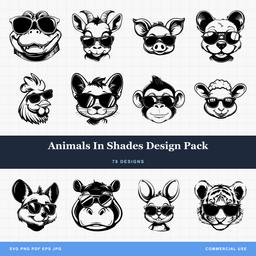 Animals In Shades Design Pack78 designs, commercial license included$3.99
The colours are labels, not instructions
This trips up more new crafters than anything else on the list. A layered wolf design might arrive as black, mid grey and pale grey. That does not mean you need grey vinyl.
Those three fills exist so that three separate things stay separate. Cut the black layer from navy, the mid grey from cream and the pale grey from copper if that is what your project wants. The file does not care and the machine does not care.
Most people find it easier to recolour the design first so the on screen preview matches reality. In Design Space you click a layer, then the colour swatch beside it, and pick something close to your actual material. In Silhouette Studio you select a layer and use the Fill panel. Five seconds per layer, and suddenly the canvas is telling you the truth about what you are building.
How each program reads the structure
| Software | What you see on import | How to separate layers |
|---|---|---|
| Cricut Design Space | Each fill colour appears as its own row in the Layers panel | Automatic. Make It puts each colour on its own mat |
| Silhouette Studio | One grouped object on the page | Right click, Ungroup. Repeat for nested groups |
| Inkscape | Groups, or named layers if the file uses them | Object > Ungroup, or the Layers panel with Shift+Ctrl+L |
| LightBurn | Each fill colour lands on its own numbered layer | Already separate. Assign each layer Fill or Line |
Cricut is the friendliest of the four because it does the splitting for you. Silhouette hands you a grouped object and expects you to break it apart, which feels like a missing feature until you realise it also means the design cannot fall apart while you are moving it around the page.
LightBurn is worth mentioning even though laser work is not usually multi colour. It maps fill colours onto its own layer numbers, which means a layered SVG gives you a free way to separate the engraved artwork from the cut outline. Our LightBurn import guide covers that in detail.
The three structures you will actually meet
Two layer: base plus detail
One solid silhouette underneath, one detail layer on top. A dog shape in black with the eye, collar and fur breaks in white sitting on it. This is the structure that teaches you the whole workflow, and it forgives a slightly crooked assembly because the top layer sits well inside the edges of the base.
Three layer: base, mid tone, highlight
A background shape, an intermediate shape and a top detail. Each layer is smaller than the one below and nests inside it. Tonal animal designs use this constantly because three values are enough to read as light, form and shadow.
Four or more: full tonal separations
Portrait style animal work, mandala style florals, and mosaic designs run to four, six, sometimes ten separations. The results are genuinely striking and the assembly is genuinely fiddly. Nobody should start here.
| Layers | Typical subject | Assembly difficulty | Alignment tolerance |
|---|---|---|---|
| 2 | Silhouettes with detail, monograms, signs | Easy | Generous |
| 3 | Tonal animals, florals, scenes | Moderate | Fair |
| 4+ | Portrait style art, mosaics, paper shadow boxes | Slow and precise | Tight |
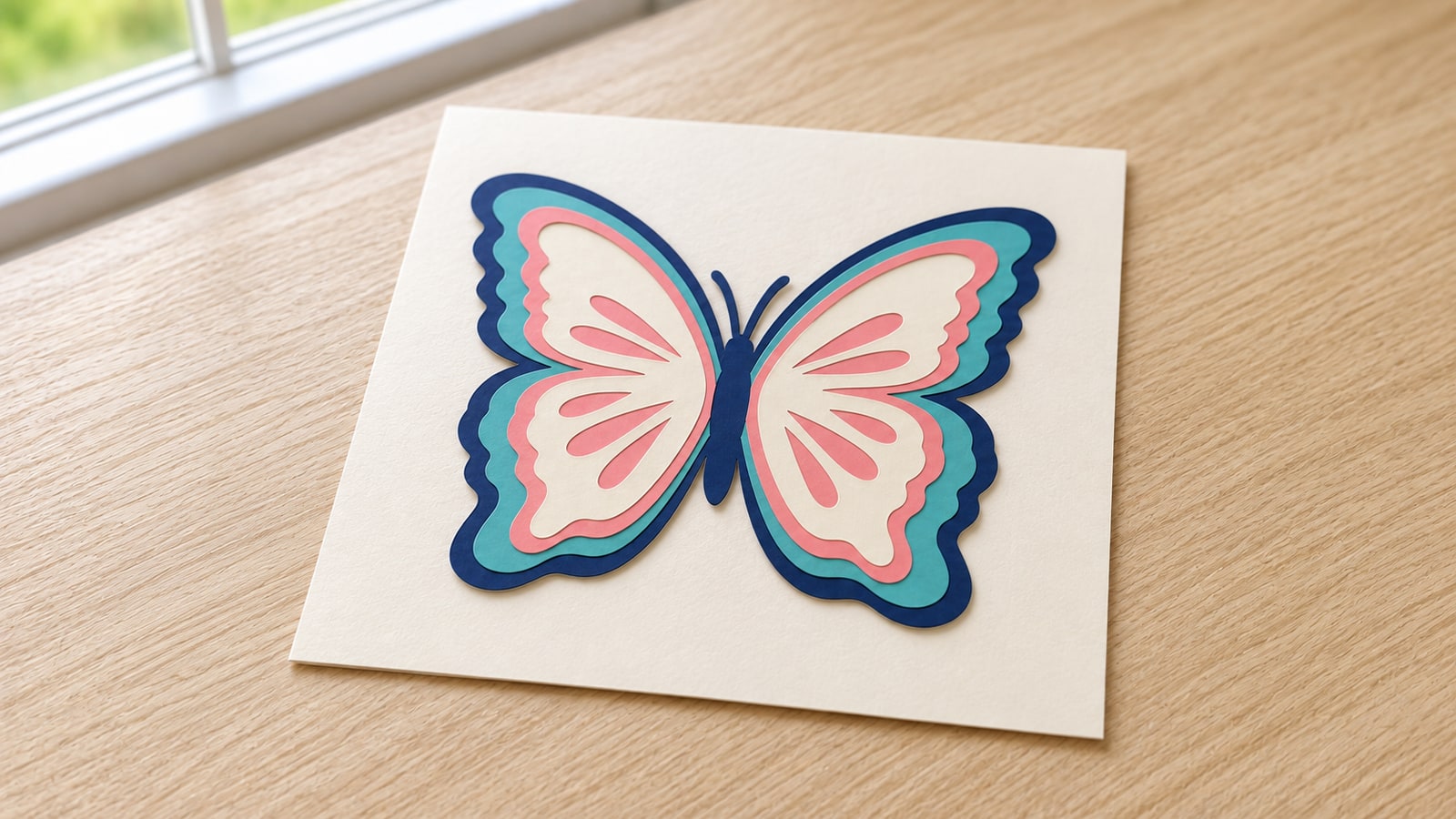
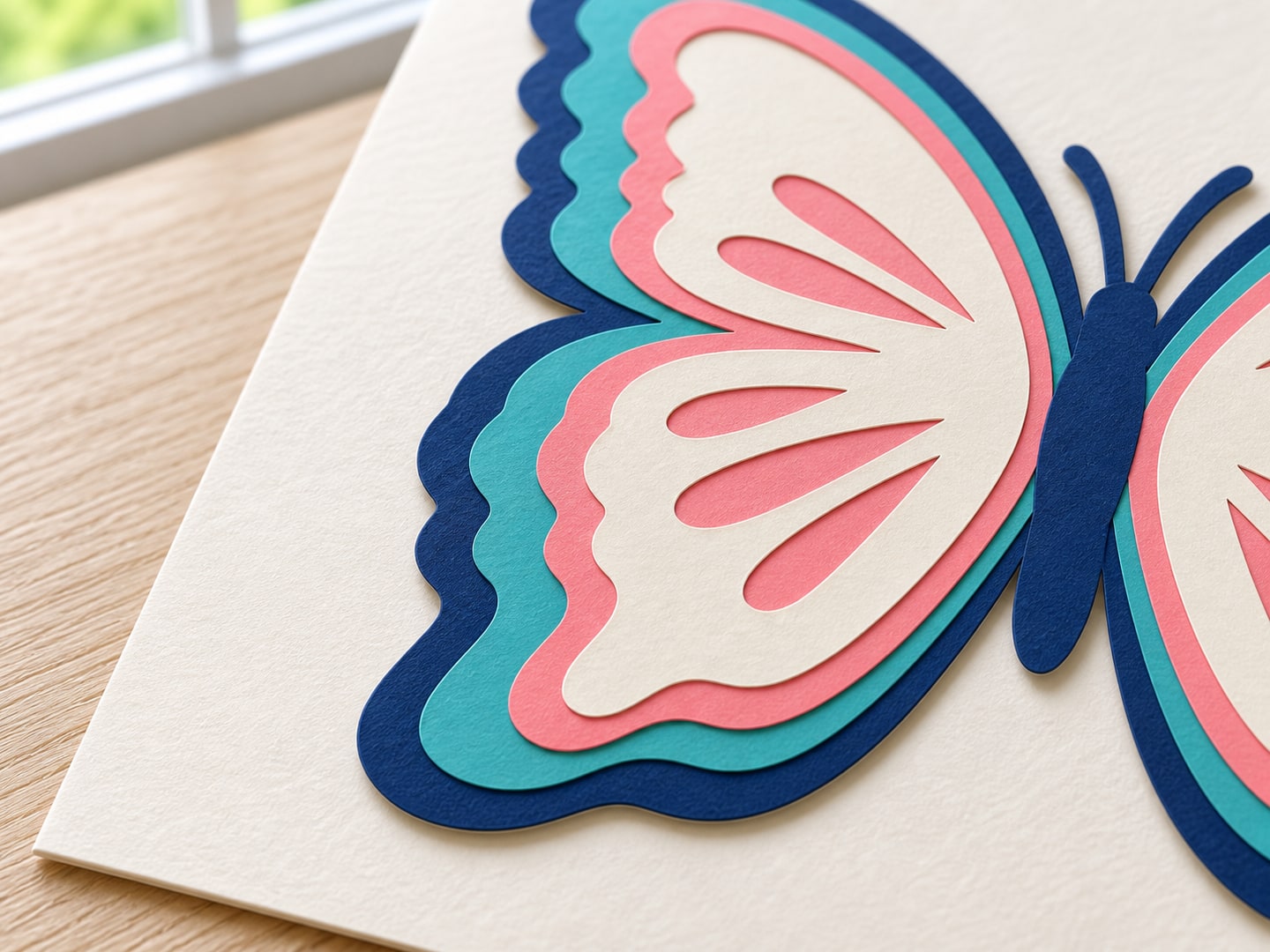
The butterfly example makes the order visible in cardstock. Navy is the base, followed by teal, coral and ivory. The openings in the ivory layer reveal coral underneath; they do not need separate coral pieces added on top.
What we do on the file side, and why it helps you
Making these files is our actual job, so here is what goes into a layered design before it ever reaches you.
Every layer is one closed, filled path per colour. No stroke widths pretending to be cut lines. A stroke is a visual property, and different programs interpret stroke width in different ways, which is exactly how a design ends up cutting at the wrong size. Filled closed paths remove the ambiguity entirely.
The bottom layer is a genuine solid, not an outline ring. It is tempting to build the base as a thin frame to save material. It is also fragile, and it collapses on the weeding hook. A solid base holds its shape through transfer tape and gives every upper layer something to sit on.
Upper layers overlap the layers beneath them rather than butting against them. Two shapes that share an exact edge look perfect in software and produce a visible hairline gap on the tumbler, because your hand is not a plotter. Deliberate overlap means a small alignment error simply disappears under the layer above.
Detail is sized to survive weeding, not to look impressive on screen. A hair fine whisker renders beautifully at 200% zoom and tears off the backing sheet in real vinyl. Thin elements get thickened or merged into the shape they belong to. That is the single most common difference between a design pack that cuts and one that only looks good in the listing photo.
Text is converted to paths. A live text element depends on the font being installed on whatever computer opens it. Once converted, the letterforms are geometry and cannot substitute themselves for Times New Roman on somebody else's machine.
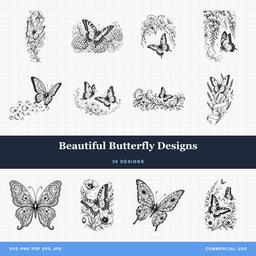 Beautiful Butterfly Designs30 designs, commercial license included$3.99
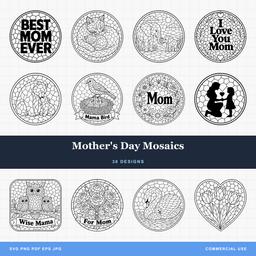 Mother's Day Mosaics30 designs, commercial license included$3.99
Read the file before you cut anything
Two minutes of looking saves a sheet of vinyl. The habit is simple: toggle layers off one at a time and watch what disappears.
In Inkscape, open the Layers panel with Shift+Ctrl+L and click the eye icons. In Design Space, click the eye beside each row in the Layers panel. Work from the top down and you will see the assembly order in reverse, which is exactly the information you need.
Note the answers to three questions. Which layer is the largest, because that one goes down first. Does any layer contain pieces that will be completely hidden, because those can often be simplified away. And is any layer surprisingly complicated, because that is the one to cut first while your blade is freshest and your patience is intact.
Resize while grouped, every single time
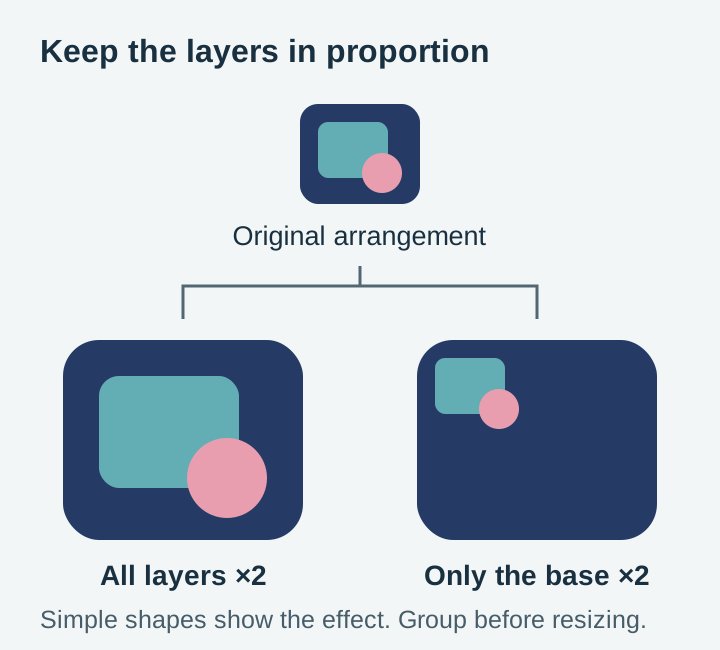
This one costs people entire projects. Select the whole design with every layer together, then resize. Never ungroup first.
Layers ungrouped and then resized individually will not line up, because each one scales around its own centre rather than around the design's shared centre. The pieces end up the right size and the wrong position, and the error is small enough that you will not spot it until the second layer goes on crooked.
Group, resize, then ungroup for cutting. In Design Space that means selecting all layers and using the lock icon on the size fields. In Silhouette Studio, resize before you ungroup. In Inkscape, select all and check that the scale stroke width option is off in the Tool Options bar so nothing shifts underneath you.
Troubleshooting
Nothing separates. Ungroup, then ungroup again. Nested groups are extremely common because designers group sub elements while working. Keep going until the panel stops changing. If everything really is one fill colour, the file is a single layer silhouette and no amount of ungrouping will invent layers that were never there.
An element is on the wrong layer. In Inkscape, select the stray shape and change its fill to match its intended layer, then use Layer > Move Selection to Layer, or simply cut and paste it into the right group. Fill colour is what the machine reads, so the fill change alone usually solves the practical problem.
Part of the design is missing. Check for hidden layers first, since an eye icon toggled off in the source file travels with the file. Then check the canvas edges with Select All, because a stray node parked far outside the artboard will quietly enlarge the bounding box and shrink everything else on the mat.
Two layers look identical. Some designs include a slightly enlarged copy of a shape as a shadow or offset layer. They are supposed to be nearly the same. Toggle one off and look for the thin halo of difference before you delete anything.
Turning a single layer design into a layered one
Plenty of single colour silhouettes can be split into two or three layers with modest effort in Inkscape:
- Open the SVG and immediately save a copy under a new name.
- Duplicate the design in place with Ctrl+D.
- On the duplicate, delete everything except the elements you want on the new layer.
- Give it a distinct fill colour so the two are visually separate.
- Repeat for each additional layer you want.
- Select everything and confirm the pieces still align exactly on top of each other.
The catch is that this splits shapes that already exist. It cannot invent the detail that sits underneath a solid silhouette, because that detail was never drawn. Splitting works well on designs that already contain internal cut lines and poorly on plain silhouettes.
If the source is a photo or a painted illustration rather than a vector, automatic separation is a better route. Craftgineer's StackLab takes an uploaded image and generates stacking layer SVGs, doing the colour separation work that is genuinely tedious by hand.
Where to go next
Layers are the structure. Getting three cut pieces to line up on an actual tumbler is a separate skill, and our layered SVG cutting and assembly guide covers the hinge method, registration marks and the HTV pressing order.
If any of the vocabulary here was new, the beginner's guide to SVG files starts one step further back. And if you plan to edit layers rather than just cut them, our Inkscape editing guide is the free tool worth learning.
Every pack in our catalogue is $3.99 and ships as SVG, PNG, JPG, PDF and EPS, with a commercial licence included, so you can sell the physical pieces you make. Browse the wildlife collection for tonal animal designs, or the full shop if you already know what you are building.
Designs for this project
Frequently Asked Questions
What is the difference between layers and groups in an SVG file?
Groups are the common approach: elements are wrapped in a group tag, usually one group per fill colour. Inkscape layers are groups too, just tagged so Inkscape shows them in its Layers panel. Cutting software treats both the same way, splitting the design by fill colour, so the distinction almost never matters at the machine.
Do the colours in an SVG file tell me what colour material to use?
No. The fill colours are labels that separate one layer from another. A red layer can be cut from any colour of vinyl, cardstock or acrylic you like. Change the colours in Design Space or Silhouette Studio to match your real materials so the preview looks like the finished piece.
Why did my layered SVG import as one single shape?
It is almost always nested grouping. Ungroup once, then ungroup again, and keep going until the Layers panel stops changing. If the design still refuses to split, check whether every element shares one fill colour, in which case the file is a single-layer silhouette rather than a layered design.
How many layers should a beginner start with?
Two. A solid base shape with one detail layer on top teaches the whole workflow, cutting each colour separately, weeding, and aligning, without punishing a small alignment error. Three and four layer designs use exactly the same process with less margin.