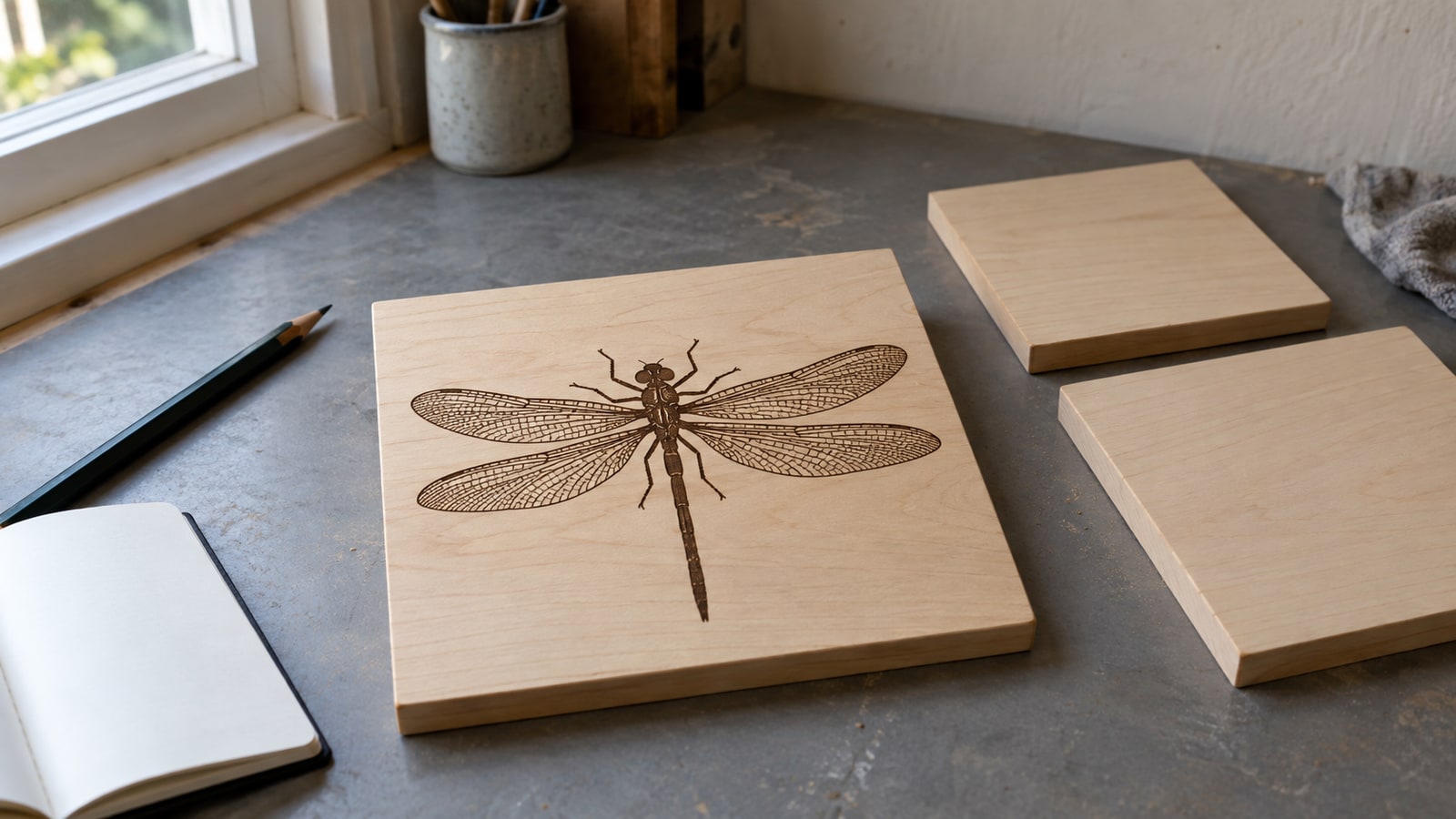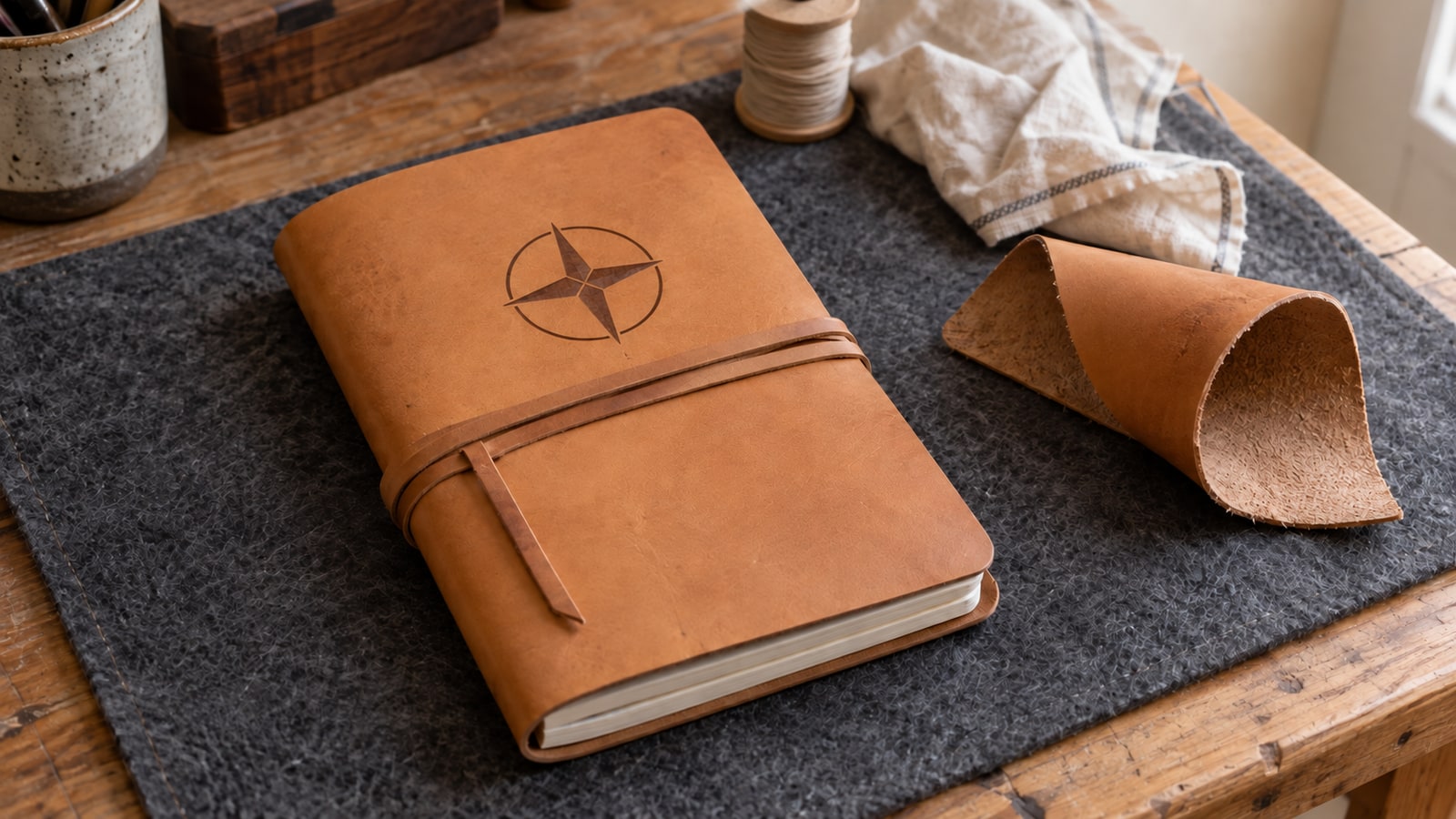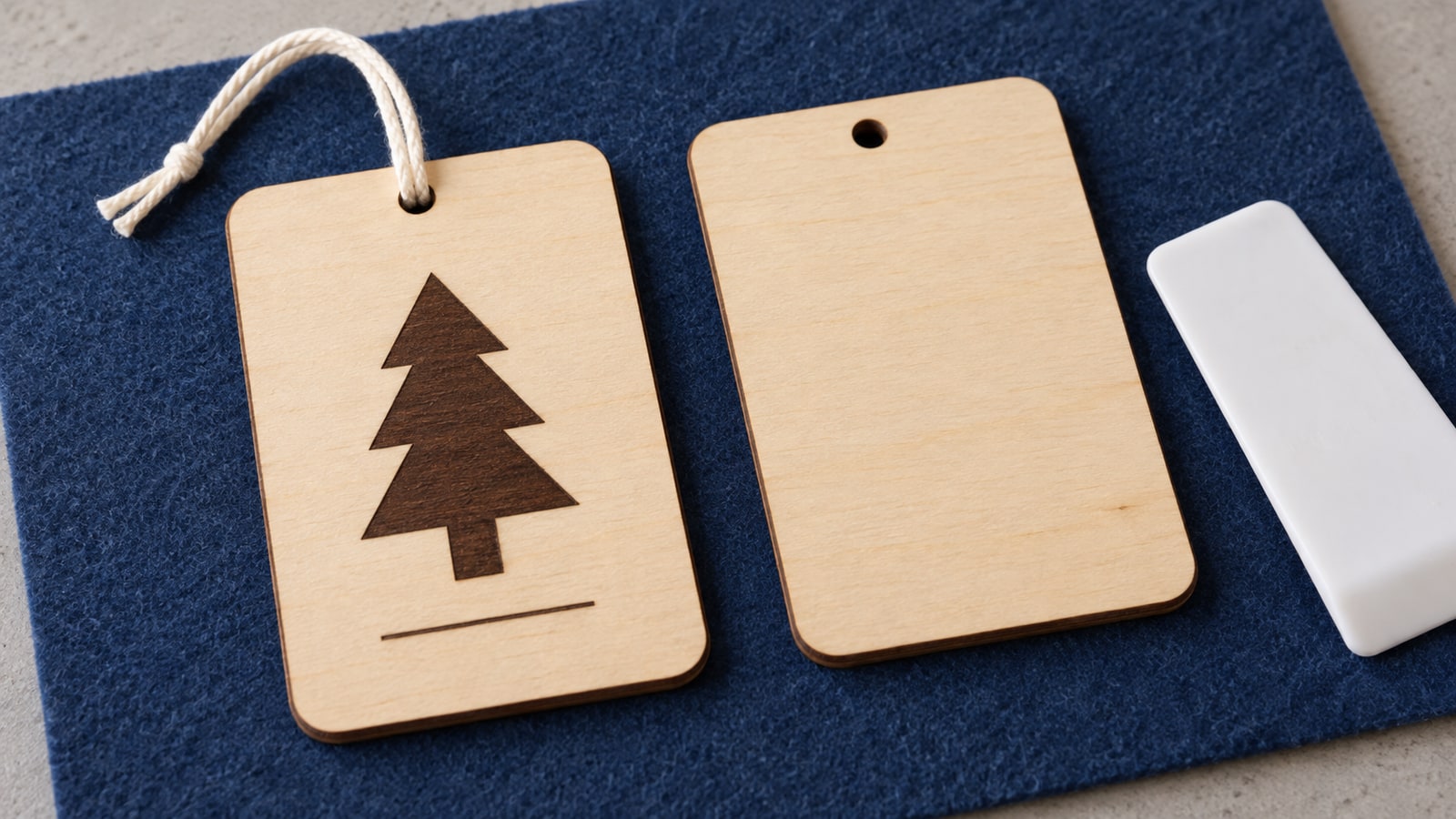
You upload an SVG to the Glowforge app and something is off. The design that should engrave is showing as a cut. A single graphic has exploded into nine separate steps. Or the artwork simply is not there, even though the file opens fine everywhere else.
None of this is a broken file or a broken laser. The Glowforge app follows a small set of rules when it reads an SVG, and once you know them, you can predict exactly what any file will do before you upload it. This guide covers those rules, the full workflow from upload to finished piece, and how to prepare files so the app reads them the way you intend.
Tip
Short answer: upload the SVG at app.glowforge.com, and the app converts filled shapes into engrave steps, stroked outlines into cut or score steps, and each color into its own independently configurable step. Control your file's colors and fills, and you control the whole job.
Uploading an SVG to the Glowforge app
The Glowforge runs from a browser app rather than installed software. Go to app.glowforge.com, sign in, click Create, then New Design, and upload your SVG (drag and drop onto the bed view also works). The design appears on the live camera image of your actual laser bed, which remains one of the genuinely pleasant things about this machine: you position artwork on a photograph of your real material.
The app accepts SVG and PDF for vector work, plus JPG and PNG for bitmap engraving. SVG is the format you want for anything that cuts, because only vector paths can become cut lines.
The three rules the app reads your file by
Everything about how a Glowforge job comes together follows from how the app interprets the SVG:
- Filled shapes become engrave steps. A solid black bear silhouette arrives as an engrave.
- Stroked paths become cut or score steps. An outline with no fill arrives as a cut by default, and you can switch it to score.
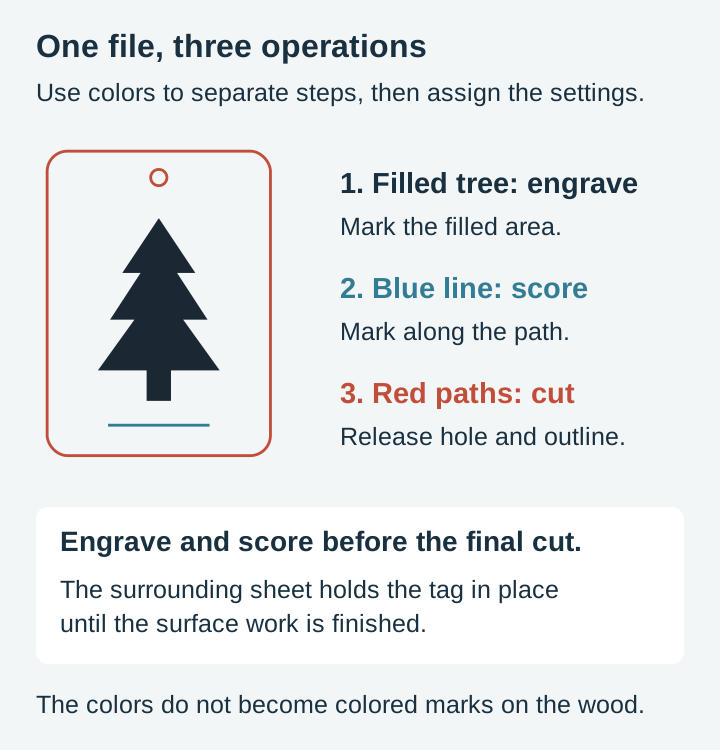
- Every color becomes its own step. A file with black artwork and a red outline produces two steps: one engrave, one cut, each with its own settings.
That color separation is the entire control system. There are no named layers in the Glowforge app; color is the layer. A well-prepared file uses one color for everything that should engrave together, and a second, visually distinct color for the cut boundary. An engraving-only design may need you to add a separate cut boundary. Inspect the actual file rather than assuming every pack includes both operations.
If a design uploads and produces the wrong operation, the diagnosis is nearly always one of the three rules. Artwork showing as a cut? It is stroked, not filled. Engrave missing entirely? Check whether the paths are closed, the artwork is visible, and the step is enabled. White is still a color; it does not inherently make a filled vector disappear. Nine steps for one graphic? Nine colors in the file.
 Crafters Laser Cutting Svg Pack38 designs, commercial license included$3.99
Placing and resizing on the bed
Click the design to select it, then drag a corner handle to resize; proportions are maintained by default. For exact dimensions, type a width or height into the toolbar fields. Rotate with the handle above the selection.
Printable area depends on your model and operation. Glowforge lists up to 19.5 by 11 inches for its Performance Series; Aura and Spark have different limits. Check the printable-area guide and the usable area shown for your connected machine. A passthrough slot, where fitted, has its own size and alignment limits.
One sizing habit worth keeping: decide the physical size before you think about settings. Vector designs rescale without quality loss, but engrave time scales with area, so a design twice as wide takes roughly four times as long to engrave. Size for the workpiece, then preview the time estimate.
Engrave, cut, and score: configuring each step
The left sidebar lists every step in the job. Click a step to choose its operation and settings.
Engrave
Engraving rasters the filled areas line by line, like a printer that burns instead of inks. The controls that matter:
- Speed and power set how dark and how deep the mark is. Slower or more powerful burns darker.
- Lines per inch (LPI) is the engrave's resolution. The app's Proofgrade presets illustrate the trade-off: the SD Graphic preset runs 270 LPI and the HD Graphic preset runs 340 LPI, with the higher figure resolving finer detail at the cost of a longer job.
- Passes lets you run the same step multiple times, which some users prefer to a single aggressive pass for deep engraves.
Cut
Cutting follows the stroked path at full depth, through the material. On Proofgrade material the app sets everything automatically; on other material you select the closest settings yourself and verify on scrap.
Score
A score is a fast, low-power line that marks the surface without cutting through. It is the right tool for decorative linework, fold lines, and outlining an engraved design with a crisp border. Any cut step can be switched to a score in its settings, which is also how you turn a design's fine line detail into quick surface marks instead of a slow engrave.
Order of operations
Glowforge’s step-order guide explains how SVG colors become separate print steps.
Steps run top to bottom, and you can drag to reorder them. Engrave first, cut last, always. If the cut runs first, the freed piece can shift by a hair on the honeycomb, and the engrave lands misaligned on an otherwise perfect part.
Proofgrade materials and everything else
Glowforge sells Proofgrade plywood, hardwood, acrylic, and leather with a QR code the lid camera reads automatically. When it detects one, the app loads Glowforge's own tuned settings for that exact material, and the results are reliably good. While you are learning the machine, that predictability is worth the premium.
For everything else, choose Unknown Material, enter the thickness with calipers, and set each step manually. Start from the settings for the most similar Proofgrade material, test on a scrap corner, and adjust from there. Materials vary batch to batch, so a settings note per material and supplier quickly becomes the most valuable document in your shop. Our wood selection guide covers which species and sheet goods behave well under a laser in the first place.
One safety line that is not negotiable: only laser materials you can identify. PVC and unverified craft vinyl can release toxic or corrosive fumes. Follow the machine and material manufacturer’s compatibility guidance.
Four habits for cleaner results
Use Set Focus before placing artwork. Click Set Focus and pick the spot on the material where the design will sit. The machine measures the actual surface height there, which both sharpens the engrave and corrects the camera preview, so what you see in the app matches where the burn lands.
Hold the material flat. Thin plywood almost always has a bow. Hold-down pins or small magnets flatten it against the honeycomb; even a couple of millimeters of lift softens focus and can turn a through-cut into an almost-cut.
Mask light woods. Engraving produces smoke that stains the surrounding surface. Paper masking tape applied before the job catches the residue, and peels off after to reveal clean edges. Proofgrade comes pre-masked for exactly this reason.
Preview the time, then commit. The app estimates job time after you press Print. A wildly long estimate usually means an engrave step that should be a score, or a design sized larger than intended. Cheaper to catch it here.
Preparing SVGs that behave in the Glowforge app
This is the part we know from the file side, because it is the difference between a design pack that uploads cleanly and one that fights you.
- One color per behavior. Fill all engrave artwork in a single color and give the cut boundary its own color. The app then produces exactly two steps, in your control.
- Convert text to paths. The app does not load your fonts. Text left as live text can substitute or vanish. In Inkscape, Path > Object to Path locks the lettering into vector outlines that render identically everywhere. Our Inkscape guide shows the workflow.
- Delete hidden and stray elements. The app processes what is in the file, including invisible objects, clipped leftovers, and stray points from editing. Each one can surface as a mystery step.
- Close boundaries that must release a part. Both scoring and cutting can follow open paths; the selected operation controls the result. A gap in a release boundary leaves the piece attached, so inspect those endpoints and close unintended gaps.
- Remove duplicate stacked paths. Two identical paths on top of each other cut the same line twice, which chars the edge. Auto-traced files are full of these; hand-cleaned files are not.
Dense, detailed engraving designs deserve one extra note. Shading in a good laser file is built from many small closed shapes doing the work of tone, so on screen the file can look like a tangle of outlines. Judge it by the engrave preview and the finished burn, not the wireframe. That vector-based shading is what keeps the design crisp at any size, where a bitmap of the same art would soften as you scale it.
Designs ready for the Glowforge
Every PrintCutCarve pack is $3.99 and ships as SVG, PNG, JPG, PDF, and EPS, with vector artwork you can prepare using the fill-and-stroke rules above. The commercial license is included with every purchase, so the plaques and ornaments coming off your Glowforge can go straight to a craft stall or shop. These packs suit laser work especially well:
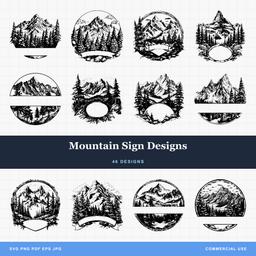 Mountain Sign Designs46 designs, commercial license included$3.99
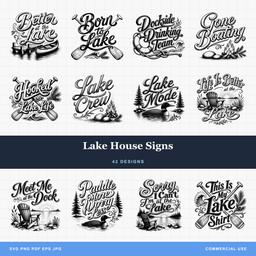 Lake House Signs42 designs, commercial license included$3.99
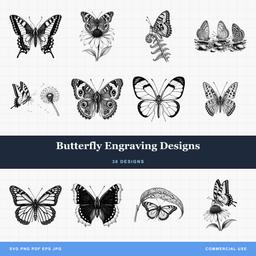 Butterfly Engraving Designs30 designs, commercial license included$3.99
If you also run a diode or CO2 laser through LightBurn, our LightBurn import tutorial covers the same file logic in that software, and the laser engraving settings guide goes deeper on dialing in materials.
Designs for this project
Frequently Asked Questions
Why does my SVG upload to Glowforge as a cut instead of an engrave?
The Glowforge app decides by how the artwork is drawn: filled shapes become engrave steps, stroked outlines become cut or score steps. If your design is built from outlines with no fill, the app has nothing to engrave. Open the file in a vector editor, give the artwork a solid fill, remove the stroke, and re-upload.
Why did the Glowforge app split my design into so many steps?
The app creates a separate step for every color in the SVG. That is a feature when you want independent control of engrave and cut lines, but a file with many incidental colors becomes a long step list. Recolor the artwork so everything that should behave the same shares one color, and keep cut lines a single distinct color.
Can the Glowforge engrave and cut the same file in one job?
Yes, and it is the standard workflow. Use one color for the filled artwork, which the app treats as an engrave, and a different color for the outline, which it treats as a cut. Set the engrave step to run before the cut step so the piece stays anchored in the sheet while the detail burns.